
This guide explains how to add residents manually in MYBOS, including where to find the Residents section, how to enter resident details, and how to create login credentials.
However, there are alternate methods to adding residents to your building which can be explored by clicking the links below.
- Bulk upload from a database (faster if you already have a resident datasheet)
- Onboarding residents through the resident portal (recommended option - this is done by residents themselves)
This article will show you how to add residents manually. Refer to the links above for alternate methods.
How to Add Residents Manually
Step by Step Walkthrough
❗ It is important that beforehand you set up all of your apartment numbers so you can assign residents to the apartments. Click here to learn how
Step 1: Navigate to the MYBOS Building Manager Web Portal
Step 2: Select "Residents" from the sidebar menu on the left-hand side of the BM Portal
Step 3: After opening the Residents feature, click "Add New Resident" located in the top right.
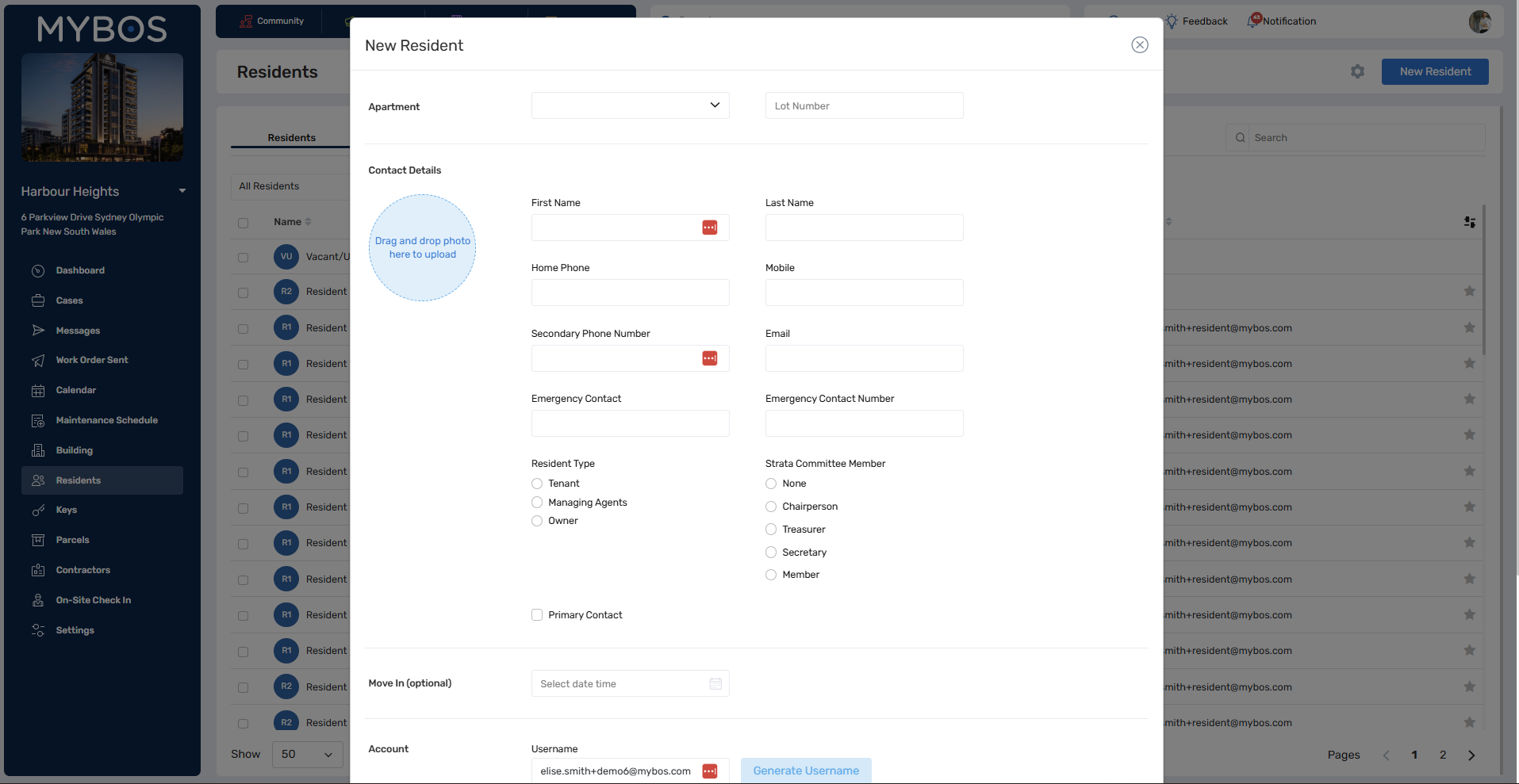
Step 4: A pop-up will appear where you can enter all of the resident's information, including if they're a tenant, managing agent or owner. From this menu, you can only enter one resident at a time (if there are multiple residents in the building, you will have to repeat the process)
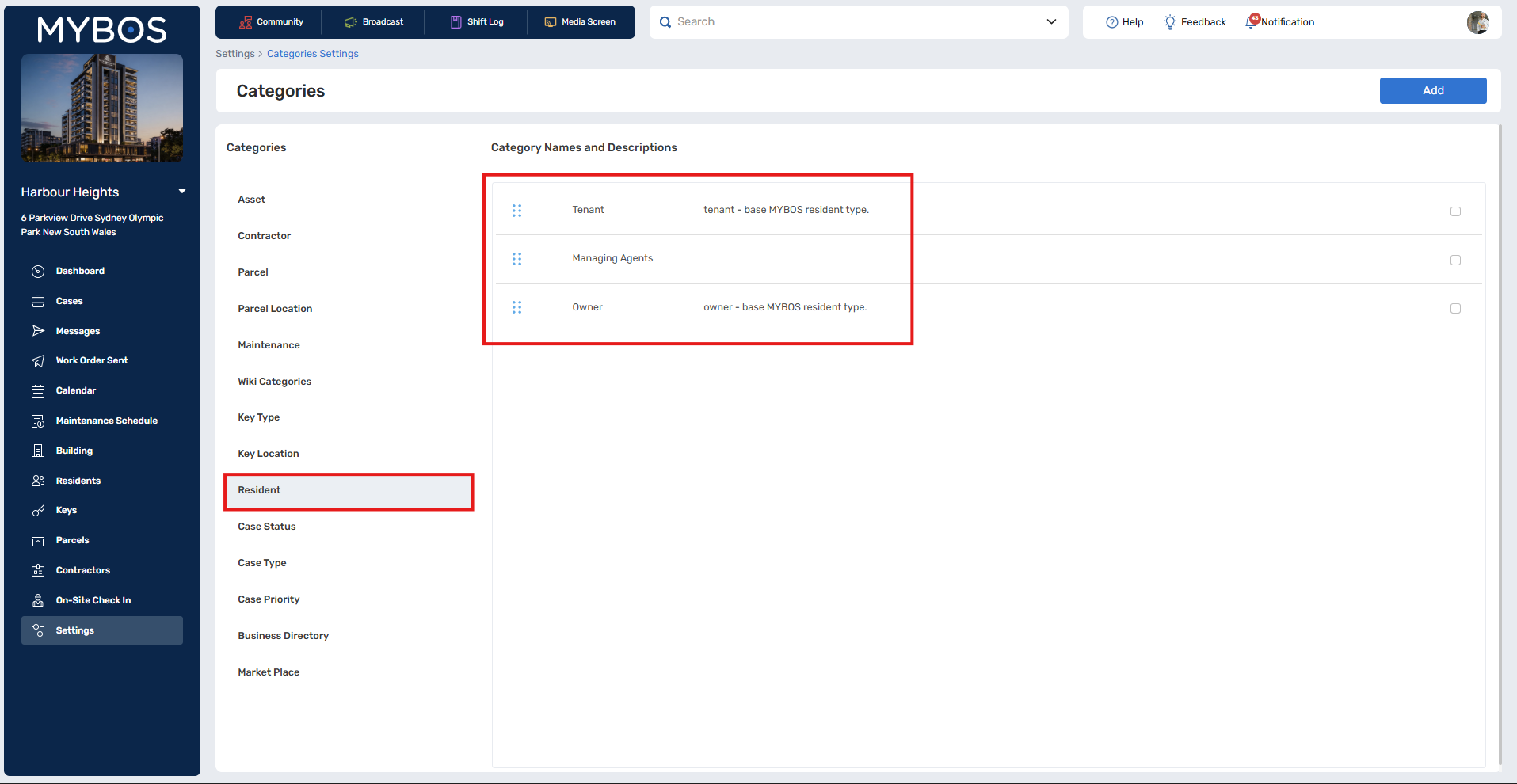
💡 Resident types (tenant, owner, managing agent etc) can be configured also by going to Settings > Categories and Descriptions > Residents and adding you preferred resident types.
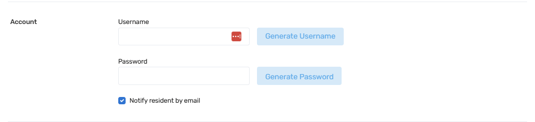
Step 5: From this menu, you can also create their account username and password. If they have an email, you can also select "Notify resident by email" so they receive their details.
Step 6: Your created resident will now appear in the resident list. You can verify this by searching their name in the search bar.
Step 7: Repeat for all residents.