
Building Managers can now gain visibility and control over Contractors and Visitors who are on site of their Building. This is completed through the Visitor Check-In process, and will allow BMs to link Contractors and Visitors directly to Case Work Orders and Quote Requests.
Building Managers will also be able to manage and report on overall Check-In records from the building as and when needed.
Quicklinks
Set Up via BM Portal
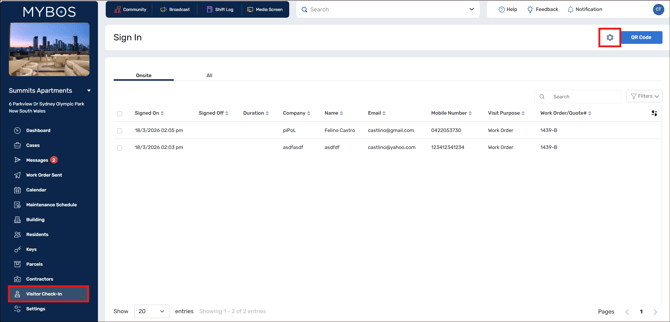
- In the Building Portal, go to the Visitor Check-In
- Click on the cog in the top right corner to start your Setup (Terms & Conditions, Geolocation & Building Sharing)
- Under Terms & Conditions, select + Add New to create Terms & Conditions, Site Induction sign off, access requirements or any other type of requirements that need your Visitors/Contractors acceptance to sign in.
Note: a maximum of 10 can be setup, and you can use one set of T&Cs across multiple Visitor types.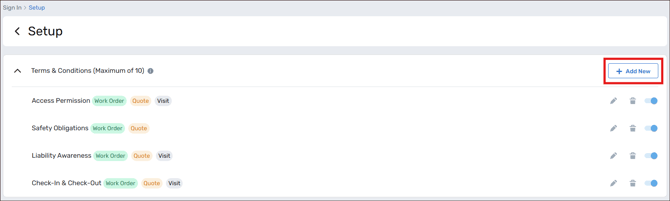
- You can request a geolocation from your Visitor/Contractor under Geolocation Services. This won't track their movement directly, but will allow you to control if they can sign in outside of the set radius, or be automatically signed out when they leave the radius.
Note: if Geolocation tracking is denied by the user, than the sign out process is entirely manual. If Geofencing is turned off all together than the sign out process is entirely manual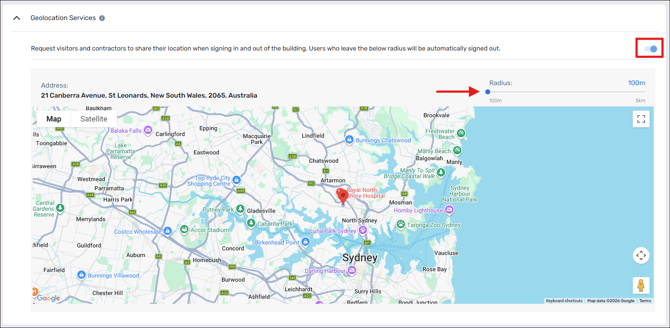
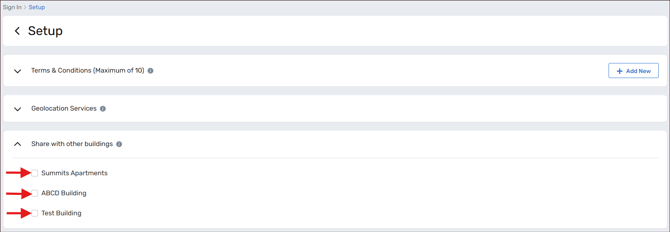
- Share with other buildings will allow you to share the Visitor Check-In capability with the other buildings displayed in this section. When a user signs in, they'll have the ability to choose the right building if this is different to the main building.
- Once you've done the basic Setup, click on the back arrow next to Setup in the top left corner.

- Click on the QR Code button. This will display the QR code for your building that can be downloaded/printed for distribution.
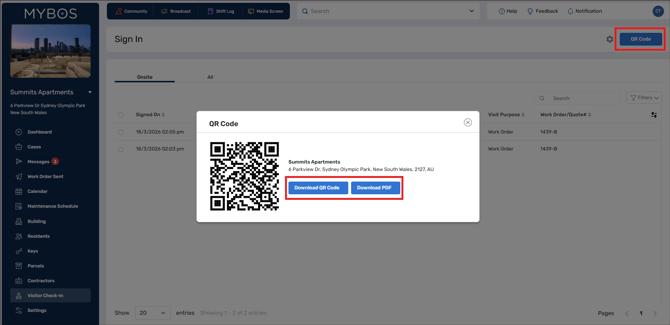
Mobile Check-In screen
- Once the QR code is scanned by a mobile, it'll open up in a web browser - asking for a geolocation straight away.
Note: when geofencing is turned on, but the user declines tracking - the sign in behaves as if the geofencing is turned off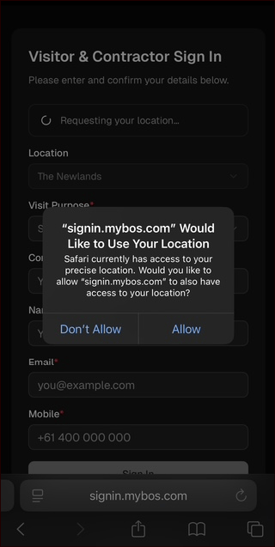
- Select Visit Purpose from the dropdown list, and then fill out the rest of the details as required.
Note: Quote Request and Work Order will require another selection, whereas Visit is for all other generic onsites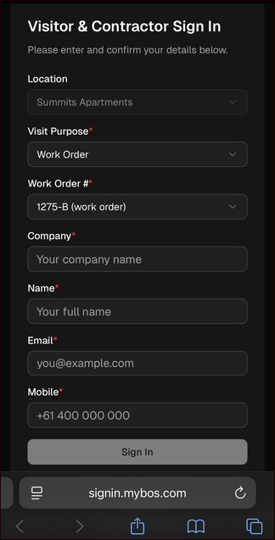
- Once all linked T&Cs are agreed to, the Sign In button will activate.
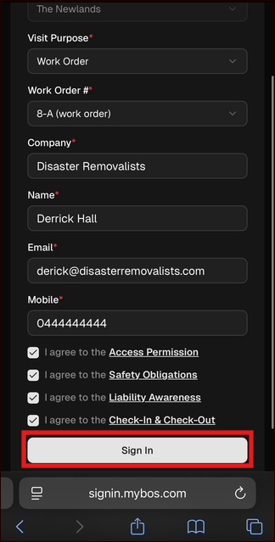
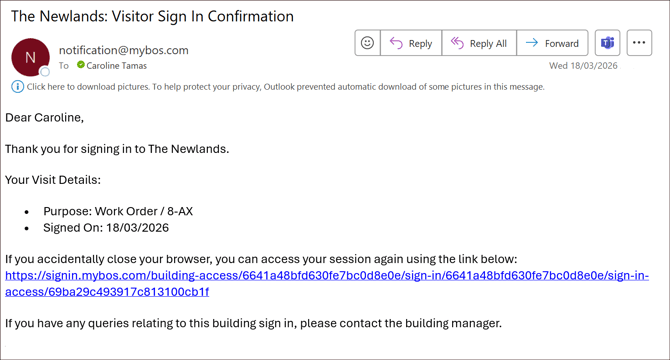
- The next screen will show a confirmation of Check-In time, location and all filled out details. The user will also receive an email confirmation, which includes a link back to the Check In page if the browser/tab is closed.
Note: Users will automatically be logged out after 24 hours, or Building Managers can manually sign out Visitors/Contractors via the BM Portal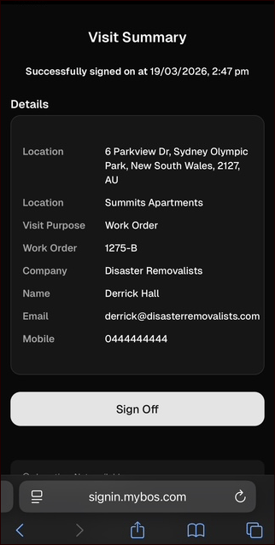
Managing Check Ins
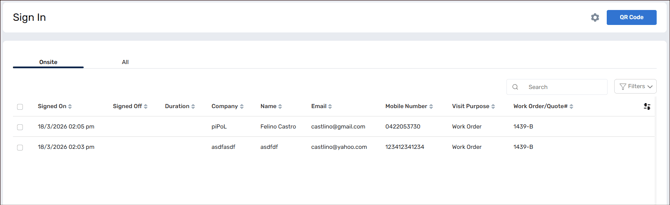
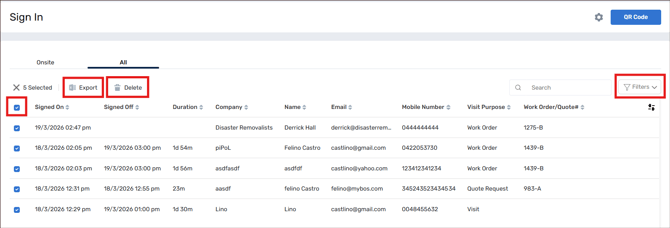
- Back in the Building Portal -> Visitor Check-In, the Onsite tab will show a list of all Visitor/Contractors that are currently within the Building. The All tab will show both past and current Visitor/Contractors to the Building.
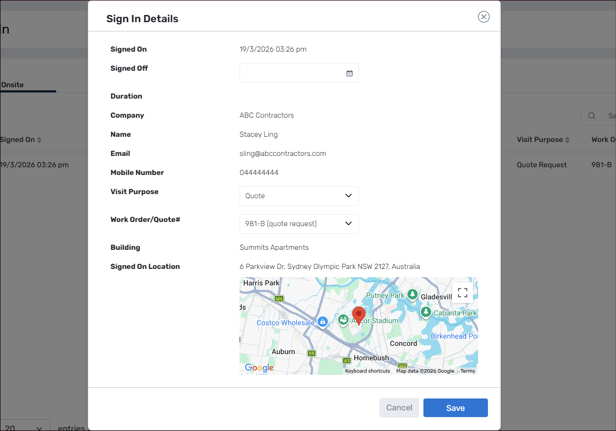
- From the Onsite tab, click on an individual to bring up their details. From here, you can view and help adjust any details if needed.
- You can Export or Delete individually or in bulk from either tab by selecting the relevant checkboxes. You can also play around with the Filter options in the top right corner
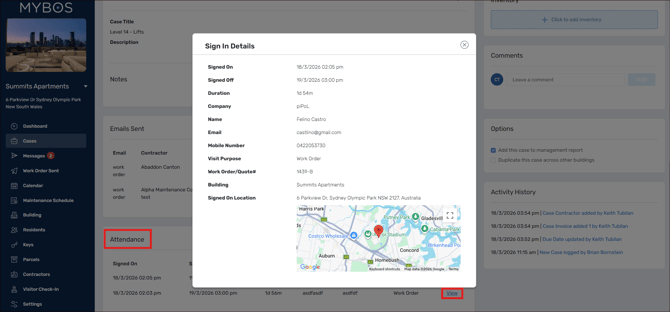
- You can also view the Contractor Check-Ins against their relevant Cases by going to those separate areas within your Building, and scrolling to the bottom.
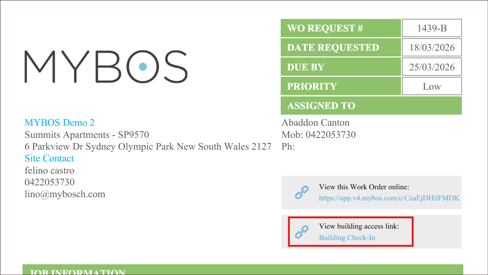
- The Work Orders and Quotes also contain a URL which a Contractor can click on to access the Check-In
Video Explainer