
Staff is where you keep the contact details of the people who work in or for your building, such as building managers, concierges and locksmiths. Everything is held in one list, so owners, residents and the team can find the right person quickly.
Each staff record can hold a name, position, phone numbers, email, website and a photo.
Add a staff member
Step 1: Go to Building ➔ Staff and click New Staff.
Step 2: Enter the First Name and Last Name.
Step 3: Choose a Type from the drop-down: Staff Member or Strata Manager.
Step 4: Enter their Position, for example Concierge or Locksmith.
Step 5: Add their Phone, Mobile, Email and Website as needed.
Step 6: Optionally drag and drop a photo into the Photo box. Without a photo, MYBOS shows their initials.
Step 7: Click Save.
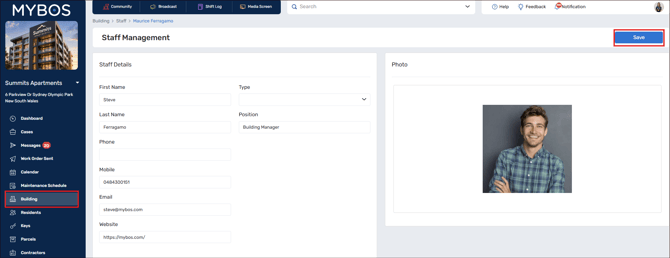
Edit a staff member
Step 1: On the Staff Management page, find the person using the search box.
Step 2: Click the pencil icon at the end of their row.
Step 3: Update the details and click Save.
Remove staff members
Step 1: Tick the checkbox beside each person you want to remove.
Step 2: A bin icon appears above the table. Click it and confirm to remove the selected people.
❗ Deleting Staff is permanent and cannot be undone.
Tips and FAQs
What is the difference between Staff Member and Strata Manager? The Type field labels the person's role in the building. Pick the one that best fits; the Position field is free text for a more specific title.
Which fields are required? Start with a first and last name. Phone, mobile, email, website and photo are optional, so add what you have.
Why is there no email or website icon for someone? The icons only appear when that detail has been entered. Edit the person to add it.
Can I find someone quickly? Yes. Use the search box above the table, or sort by Name or Position.
Is removing a staff member permanent? Treat it as permanent and check the ticked rows before you confirm.