
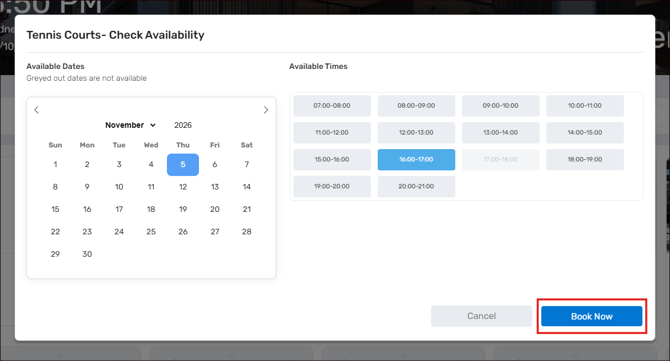
Each amenity shows its own calendar of available dates and time slots, so you can see what is free before you book.
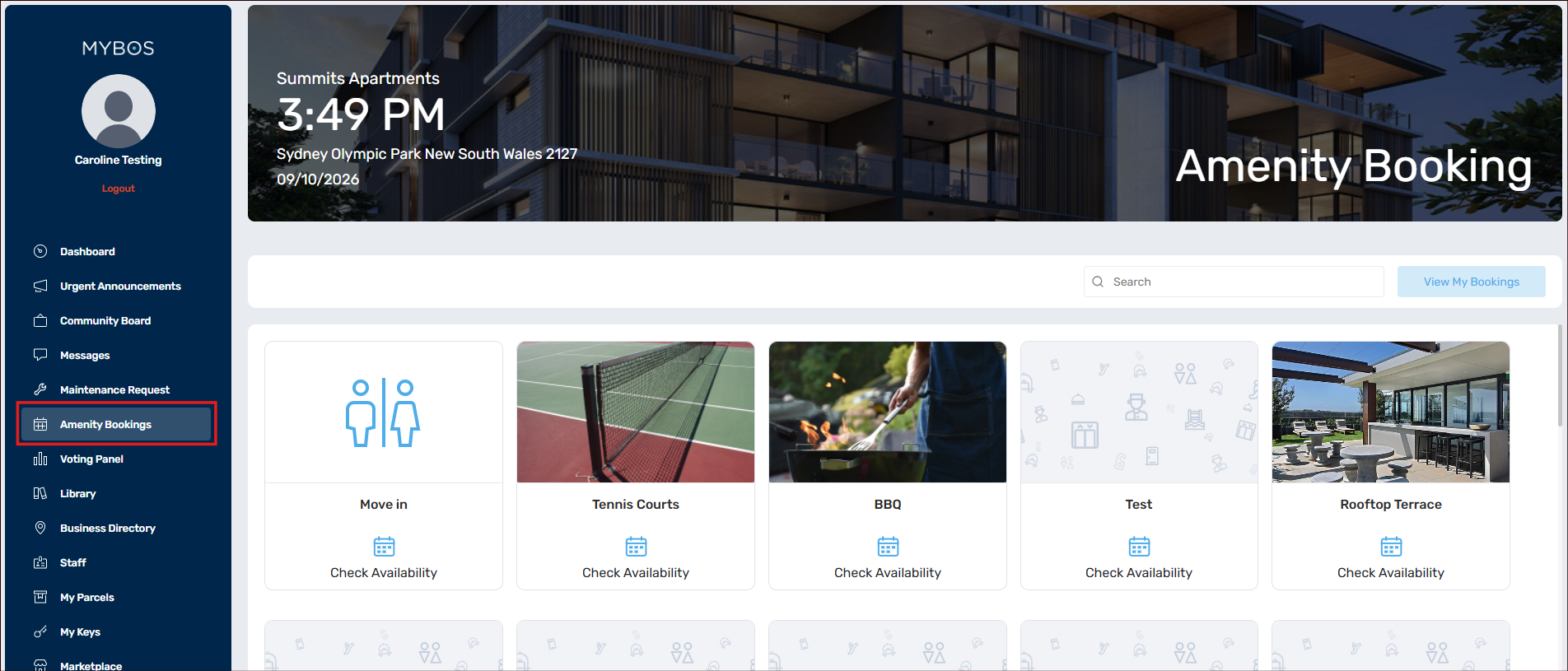
The Amenity Booking page lists every amenity your building has set up as a card. Use the Search box to find one by name, or select View My Bookings to see bookings you have already made. Which amenities appear, and which dates and times are open, is set by your building manager.
Making a Booking
Step 1: Log in to the Resident Web Portal and select Amenity Bookings from the left-hand menu.
Step 2: Find the amenity you want. Scroll the cards or use the Search box, then select Check Availability on the amenity.
Step 3: In the Check Availability window, choose a date from the calendar under Available Dates. Greyed-out dates are not available. Use the arrow and the month drop-down to move to other months.
Step 4: Choose a time slot under Available Times. Each slot is shown as a start and end time, such as 12:00-13:00. The slot you pick is highlighted.
Step 5: Select Book Now. The button stays greyed out until you have picked both a date and a time. Select Cancel to close the window without booking.
Step 6: Read the Terms & Conditions for the amenity. These may include a description of how to use the facility and a downloadable document, such as a manual. Tick I accept the terms and conditions, then select Next. The button stays greyed out until you accept.
Step 7: Check your details. Your name, email and mobile number are filled in from your resident profile. Add a home phone number or a Comment if you want to, then review the Booking Summary (amenity, date and time).
Step 8: Select Confirm Booking. A Booking Submitted screen shows your booking number, the amenity, date and time, and your details, and a "Successfully booked amenity." message appears. Select Go to booking to open the booking, or Close to return to the Amenity Booking page.
|
Item |
What it does |
|---|---|
|
Available Dates |
Calendar of dates you can book. Greyed-out dates are not available. |
|
Available Times |
Time slots for the date you selected. Appears once you pick a date. |
|
Book Now |
Submits your booking. Enabled only after you choose a date and a time. |
|
Cancel |
Closes the window without making a booking. |
The available dates and time slots depend on how your building manager has set up each amenity, so they differ between amenities.
Viewing Your Bookings
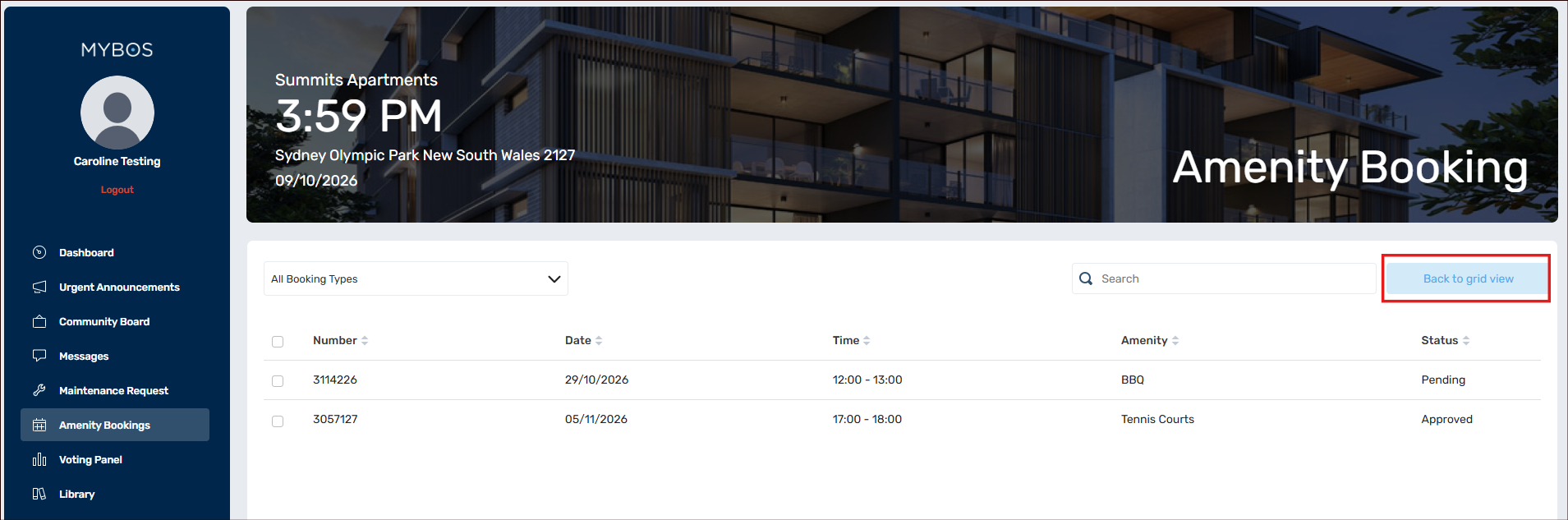
Select View My Bookings at the top of the Amenity Booking page to see a list of your bookings. The list shows the booking number, date, time, amenity and status. Use the booking type drop-down or the Search box to narrow the list, select a column heading to sort it, and select Back to grid view to return to the amenities.
Select a booking to open its details. A new booking shows a Pending status, and a Cancel Booking button is available on the booking page. Bookings that have been accepted by your building manager show as Approved.
Tips and FAQs
Why can't I select a date? Greyed-out dates are not available for that amenity. Choose a highlighted date, or move to another month using the arrow.
Why is the Book Now button greyed out? It turns on once you have selected both a date and a time slot.
Why don't I see the time slots? Time slots appear only after you select an available date.
I can't find the amenity I want. Use the Search box on the Amenity Booking page. If it is still missing, your building manager may not have set it up for residents, so contact them.
Do all amenities have the same time slots? No. Each amenity has its own dates and slots, set by your building manager.
What does Pending mean? Your booking has been submitted and is waiting for your building manager. It shows as Approved once it has been accepted.
Do I need to accept terms and conditions? Yes. You must tick the box before you can continue to the booking details.