
Learn the efficient process for adding new parcel deliveries into the MYBOS system. This guide covers how to input recipient details, organise multiple items, and finalise the registration to ensure your facility's package management remains accurate.
How to Log and Manage Parcels
Step by Step Walkthrough
Step 1: Navigate to the MYBOS Building Manager Web Portal.
Step 2: Click on the Parcels feature on the left hand side bar.
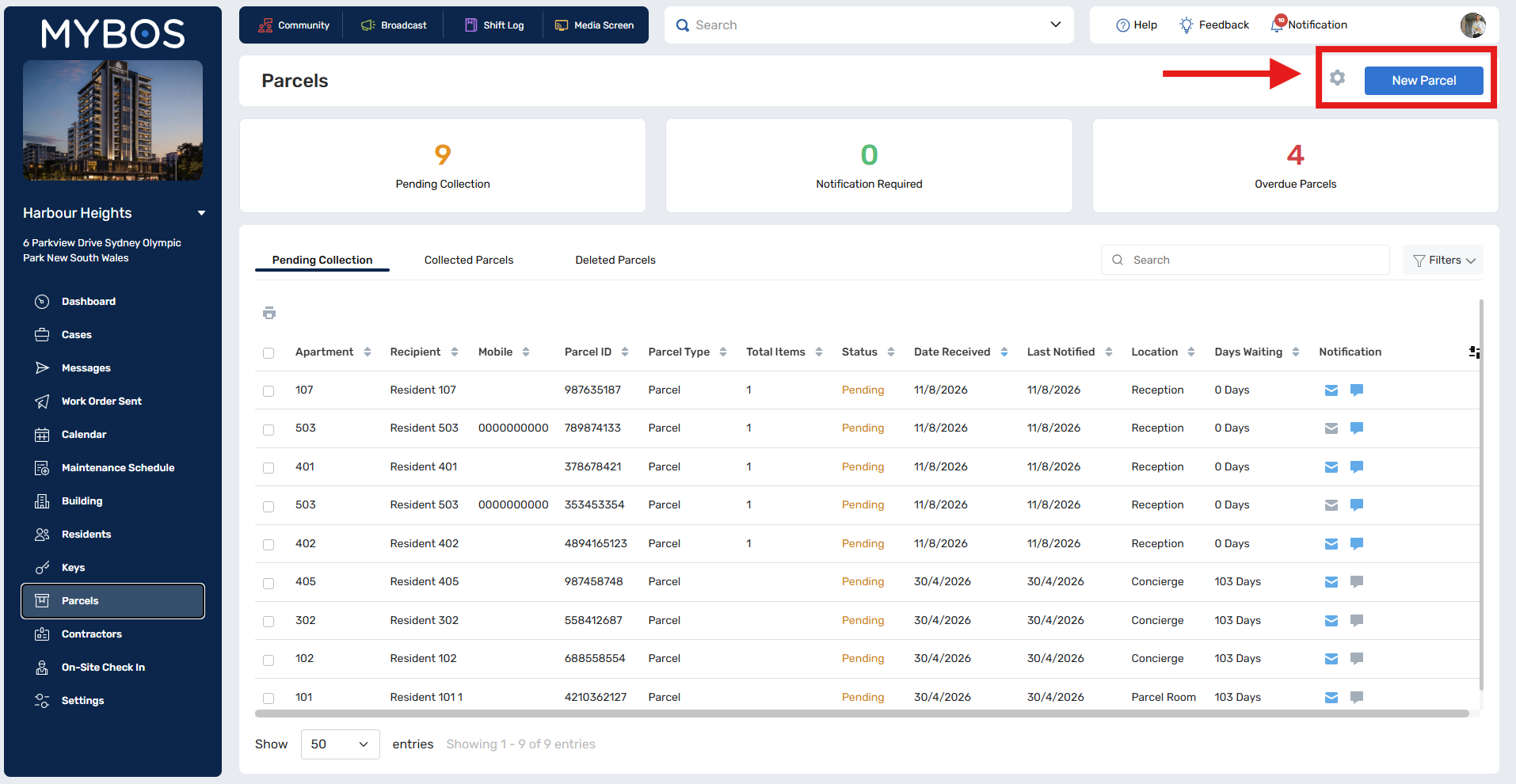
Step 3: To add new parcels, click the blue New Parcel button in the top right.
 Click to Enlarge
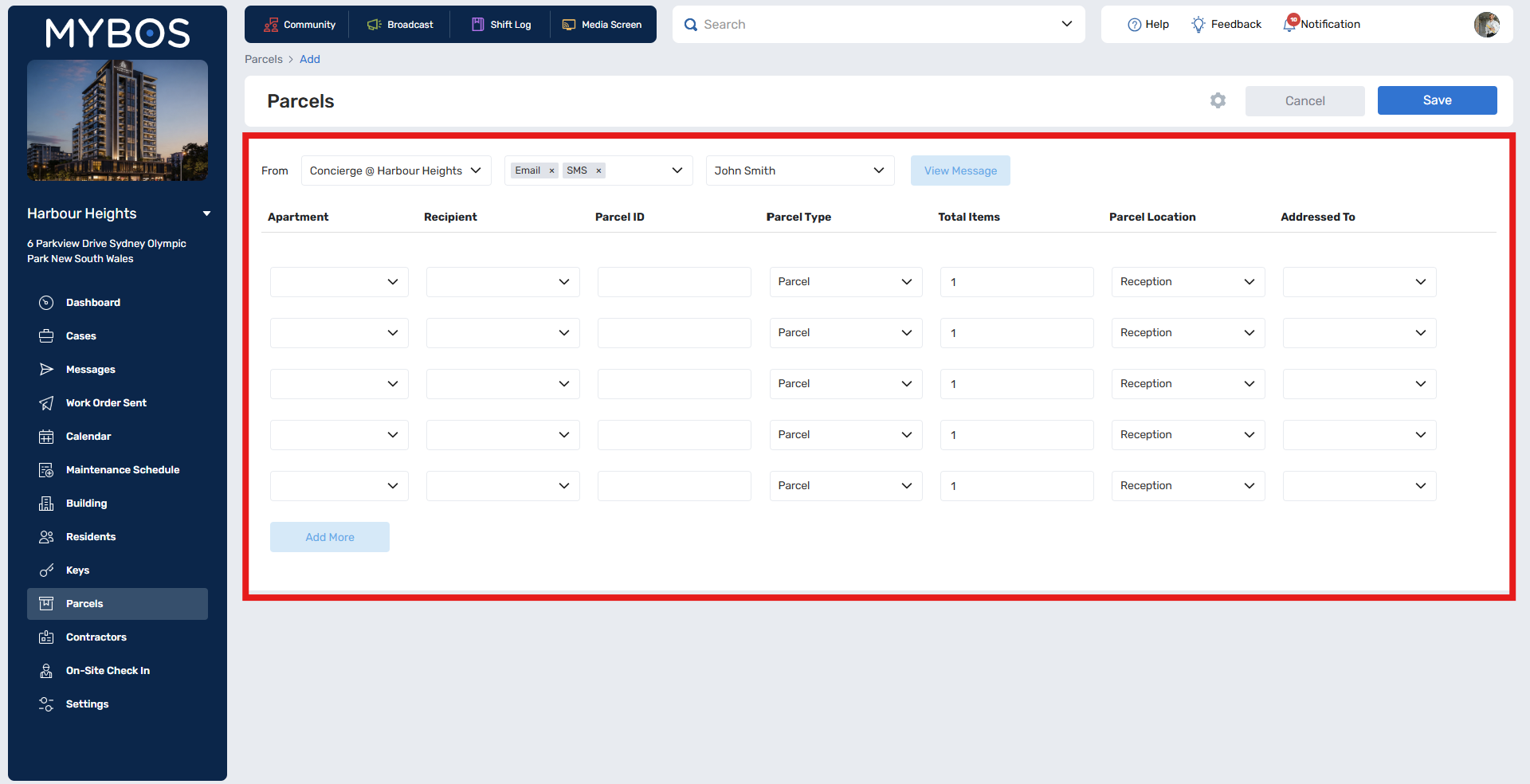
Step 4: Input the Parcel details, including:
- Apartment
- Recipient
- Parcel ID
- Parcel Type
- Total Items
- Parcel Location
- Addressed To
 Click to Enlarge
Prefer a faster workflow? A barcode scanner can be used to scan the Parcel ID directly into the field — available as an optional add-on. Contact sales for details.
Step 5: If you need more rows, click "Add More". 5 more fields will populate that can also be deleted.
Step 6: You can configure notifications via the top row, these are set by default in settings to avoid having to change them every time you log a parcel. If you would like to learn more about the default settings, click here.
Step 7: View and edit the message that is sent out to Residents by clicking the "View Message" button in the top row.
Step 8: Click Save to finalise.
Step 9: If a Resident comes to collect their package, you can find the package in the "Pending Collection" tab and looking for their name or Parcel ID.
💡If a Resident comes to collect their parcel, and you need to log its collection, you can quickly search for the parcel with a barcode scanner in the search field.
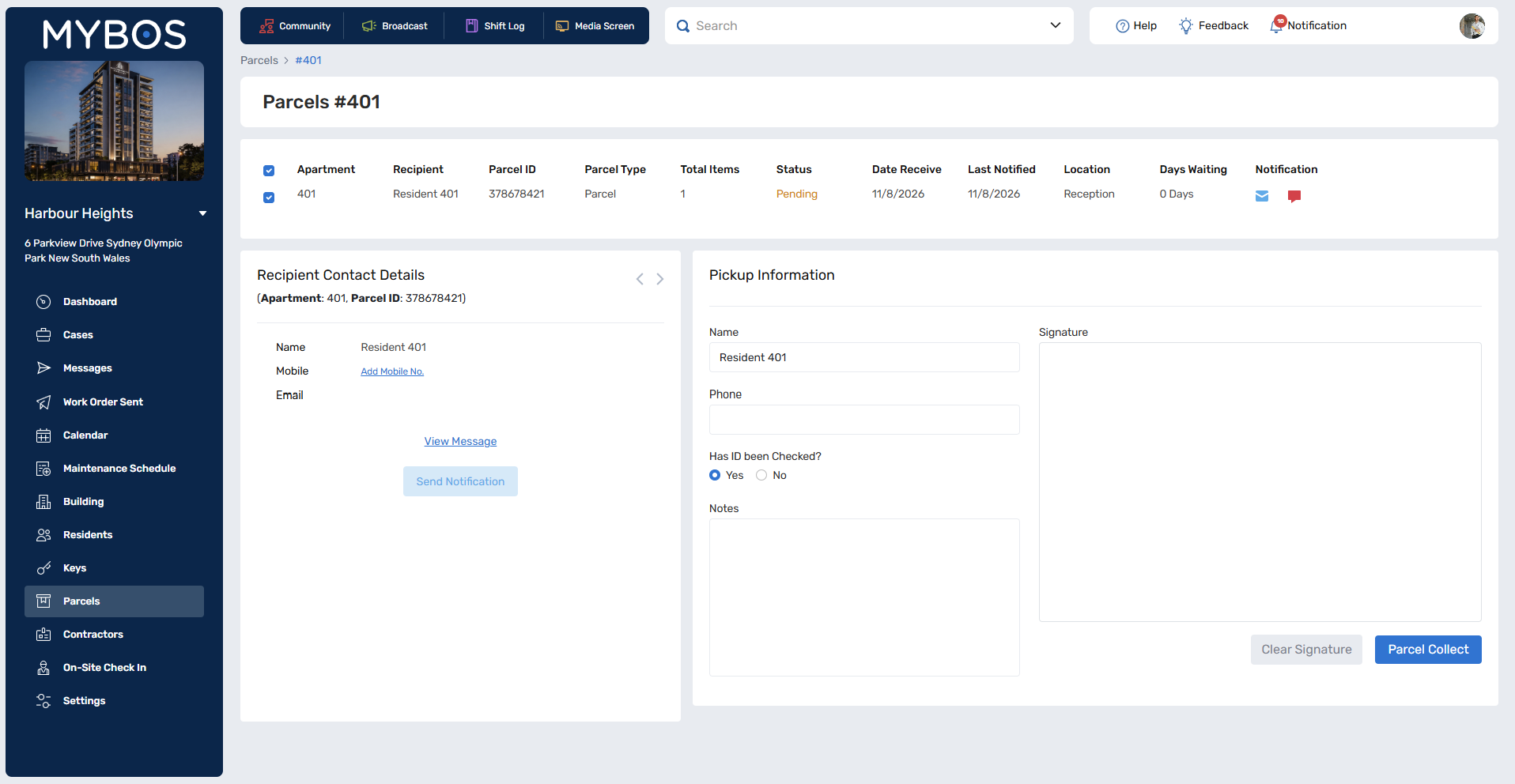
Step 10: Confirm the details. You can also request a signature from the resident.
 Click to Enlarge
A USB signature pad can also be used in place of a touchscreen — available as an optional add-on if needed.
Step 11: Once completed, click "Parcel Collect" to finalise the collection.