
Once a schedule is created, you can view your full maintenance history and upcoming events at a glance and when a contractor submits an invoice, you can attach it directly to the relevant event.
Managing Invoices for Scheduled Maintenance
Step by Step Walkthrough
Step 1: In the Maintenance Schedule feature located on the left hand menu. Navigate to the relevant maintenance schedule by clicking it.
Step 2: Scroll down to the bottom of the Maintenance Schedule, where there are two tabs:
-
Past Events and Upcoming Events
Step 3: In the Past Events tab, click View Event to view the maintenance in detail.
Step 4: From this menu, you can amend the event status so that it is completed as well as adding various documents, comments and invoices.
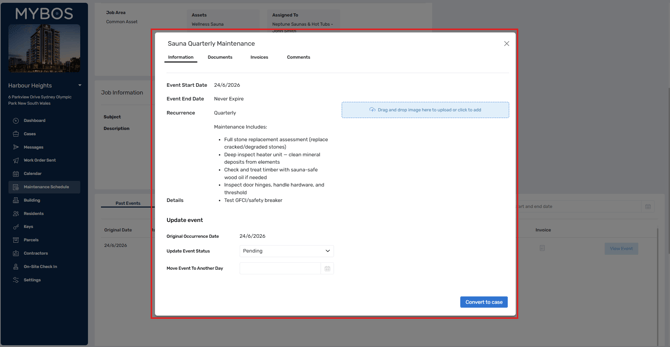
❗If the contractor has reported a fault with the asset, you can quickly convert it into a case by selecting "Convert to case" in the bottom right.
Step 5: To attach an invoice sent from a contractor, select the Invoice tab.
Step 6: Attach your invoice and add relevant details
💡 If budgets have been created, you can also associate the amount with a budget.
Step 7: Click Save to finalise the invoice
Check your Invoice Email settings via Settings ➔ Email & Template Options ➔ Invoices
Step 8: Once the "Update Event Status" is set to Completed, the Invoice will either:
-
Invoice Approved Email is toggled on, the Invoice will be automatically sent to tagged management emails and set to Approved

-
Invoice Approved Email is off, invoice will be sent to Pending where you will need to manually Approve invoices.