
You can upload Invoices against a Case raised from a Maintenance Request or scheduled maintenance event, which can then be applied against either a Private Lot or Asset.
Managing Invoices for Cases
Step by Step Walkthrough
Step 1: In Cases feature located on the left hand menu. Navigate to the relevant case by clicking it.
Step 2: Scroll down to Invoices (located on the right side), and either drag & drop or click within the blue box to upload your Invoice.
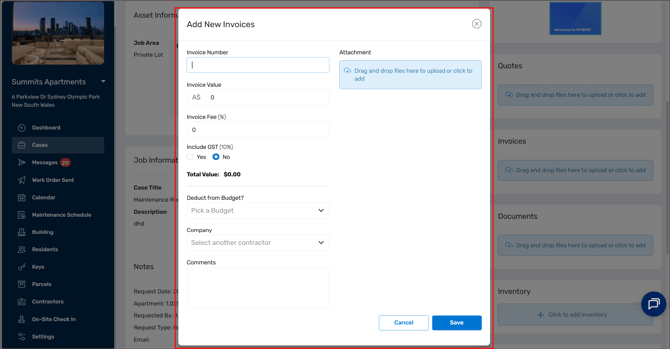
Step 3: In the pop up window, you can add in all the necessary fields such as:
- Invoice Number
- Invoice Value
- Invoice Fee
- Deduct from Budget
- Select a Company
- Include any Comments
-
Include GST
Attach the Invoice before clicking Save.
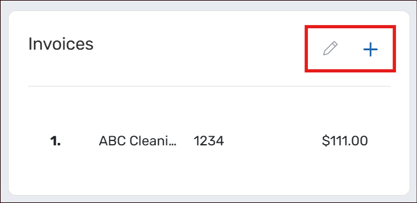
Step 4: Once Saved, you can either Edit an existing Invoice via the pencil icon, or add in a new Invoice via the plus button.
❗Check your Invoice Email settings via Settings ➔ Email & Template Options ➔ Invoices
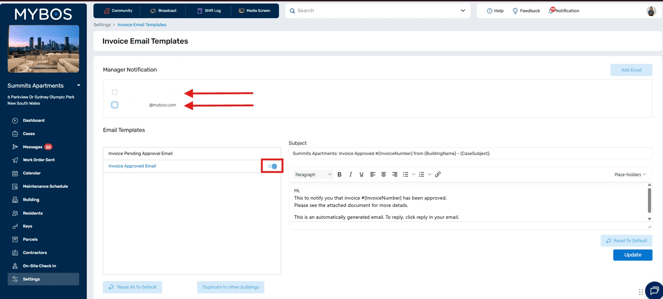
Step 5: Once the a case has been marked as Completed (the green MYBOS default completed status), the Invoice approval process will change based on what settings have been configured:
-
Invoice Approved Email is toggled on, the Invoice will be automatically sent to tagged management emails and set to Approved
-
Invoice Approved Email is off, invoice will be sent to Pending where you will need to manually Approve invoices.
Viewing remaining Budget balance
When entering an Invoice against Cases and Maintenance Schedules and selecting a Budget, you can view the colour coded system to quickly asses spending against the Budget:
- Green: Positive Budget Balance
- Yellow: Exact Budget Balance
- Red: Negative Budget Balance
Regularly monitor budgets to prevent overspending.
Click to view in separate window here