
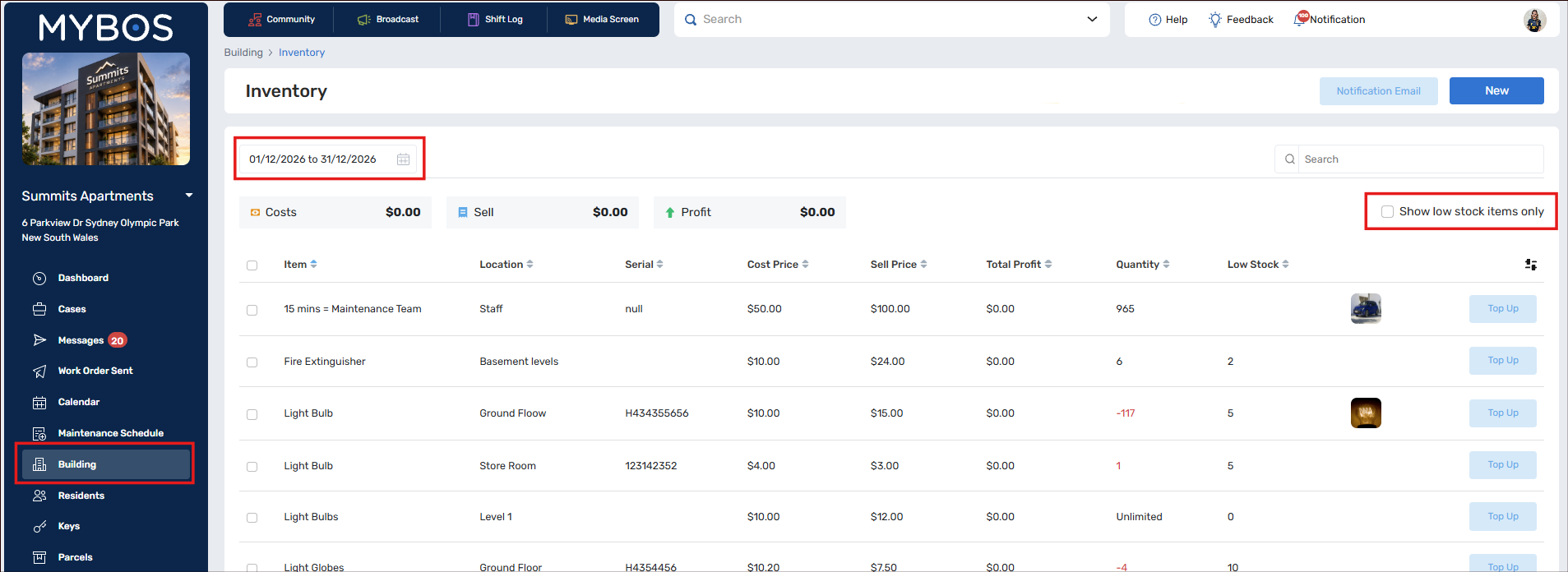
At the top of the page, three totals summarise the items for the date range you pick: Costs, Sell and Profit. Below them, a table lists every item with these columns:
| Tab Name | What it shows |
|---|---|
| Item | The name of the item |
| Location | Where the item is stored |
| Serial | The serial or part number, if you entered one |
| Cost Price | What the item costs you |
| Sell Price | What you charge for it |
| Total Profit | Profit made on the item in the selected date range |
| Quantity | How many you have on hand, or Unlimited. Negative or low quantities show in red |
| Low Stock | The level at which the item counts as low stock |
Use Search to find an item, change the date range at the top left, or tick Show low stock items only to see what needs reordering.
Adding an Inventory item
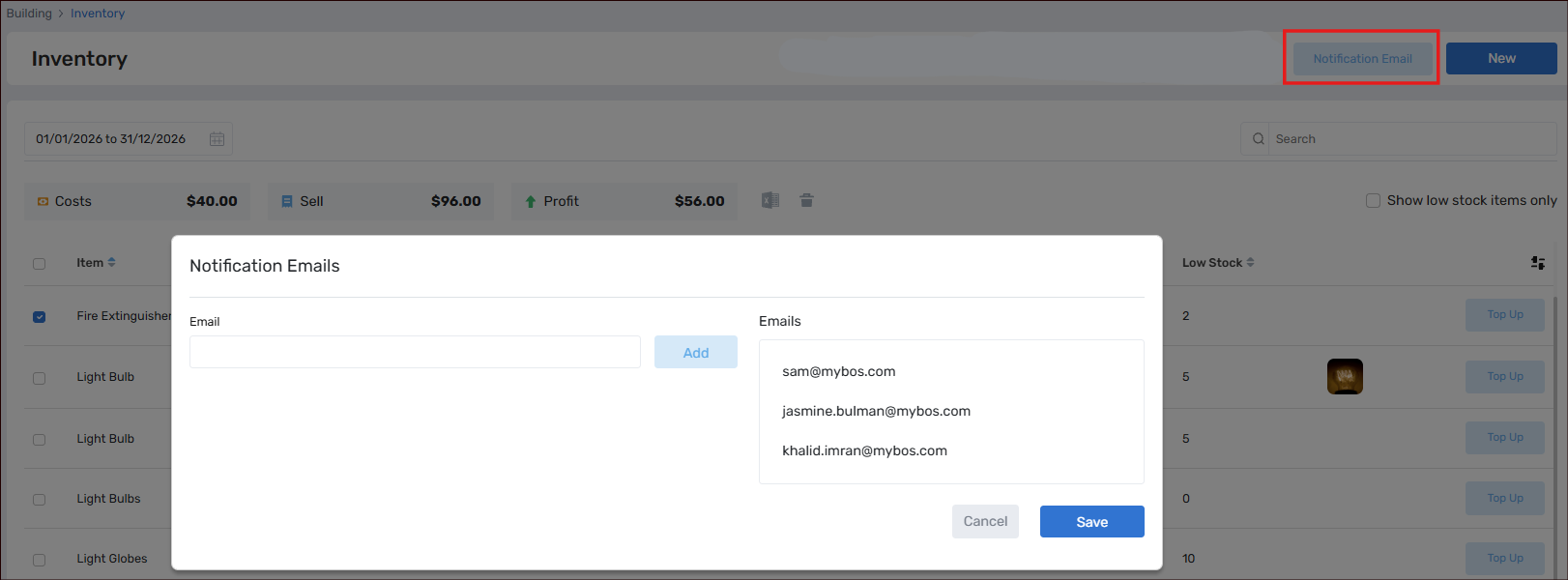
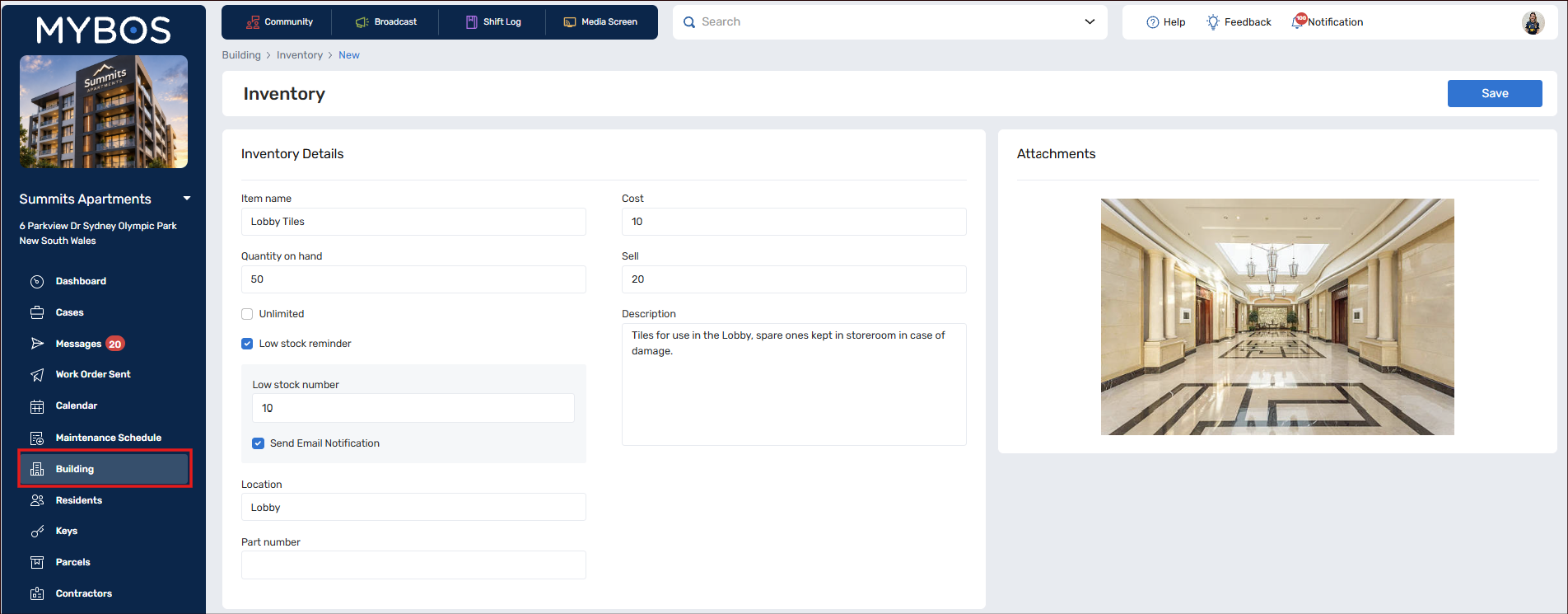
Step 1: Go to Building ➔ Inventory and click New.To adjust who receives the low stock notifications, click on Notification Email in the top right corner of the main Inventory page.
Top up stock
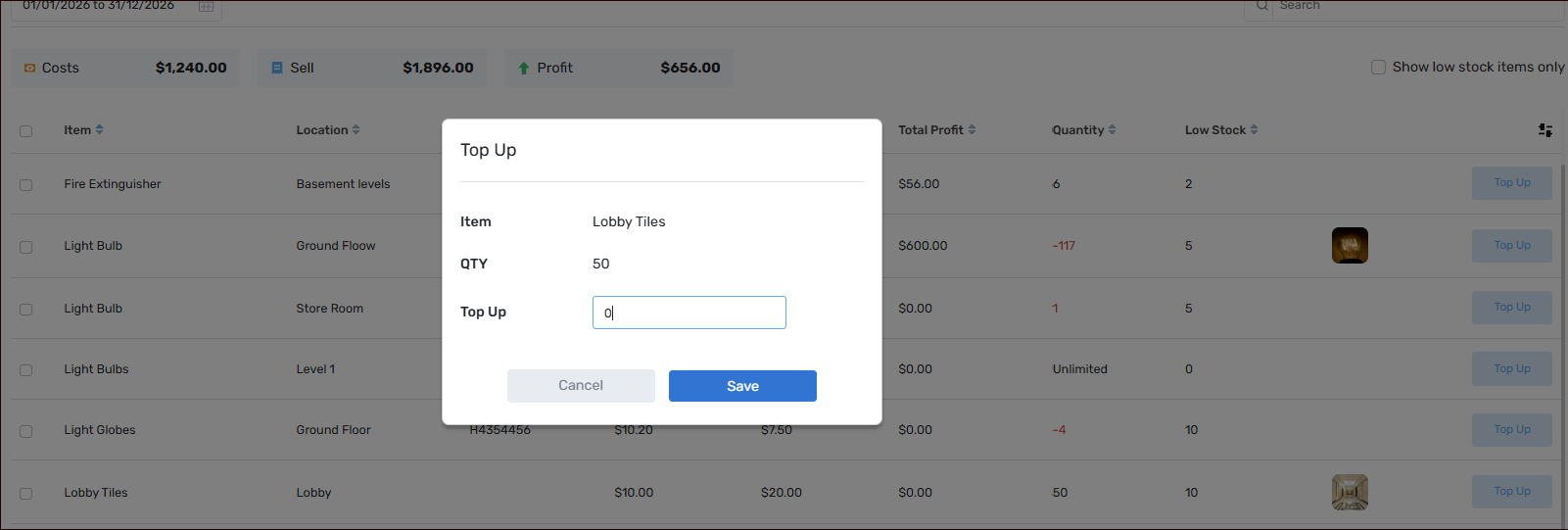
When you restock an item, click Top Up at the end of its row to increase the quantity on hand.
Using Inventory on a case
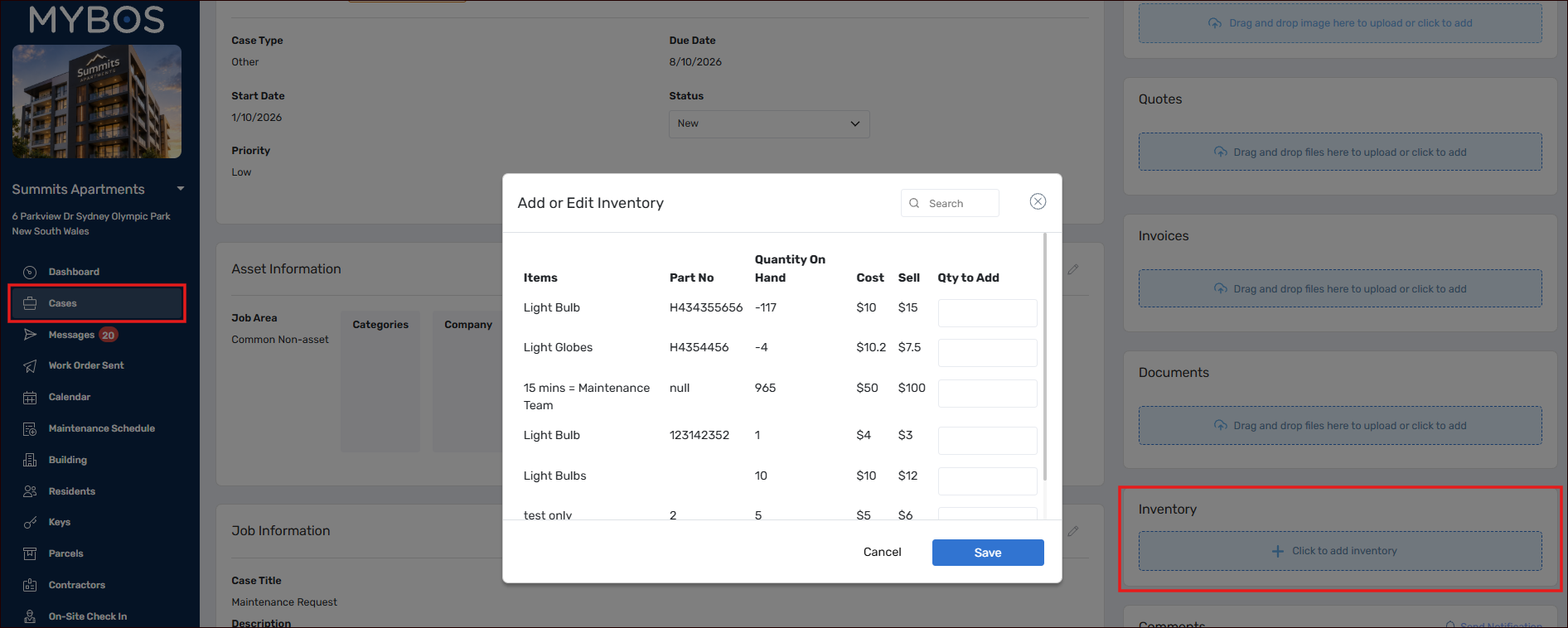
Go to Building ➔ Cases, click on a job Case and scroll to the Inventory section on the right hand side. Search and select the Item, enter the quantity used and save. Once the Case is Completed, the Inventory Item/s are automatically sent to the Pending tab within the Invoice Approval section.
Charging for labour
Inventory items do not have to be physical. To charge for time, create an item with a time-based rate, for example 15 minutes of maintenance team time, and add it to cases the same way as any other item. Tick Unlimited on the item so its quantity never runs down.
Reviewing and exporting
Change the date range at the top of the page to see costs, sales and profit for any period. Tick items in the table to export them to Excel for further analysis.
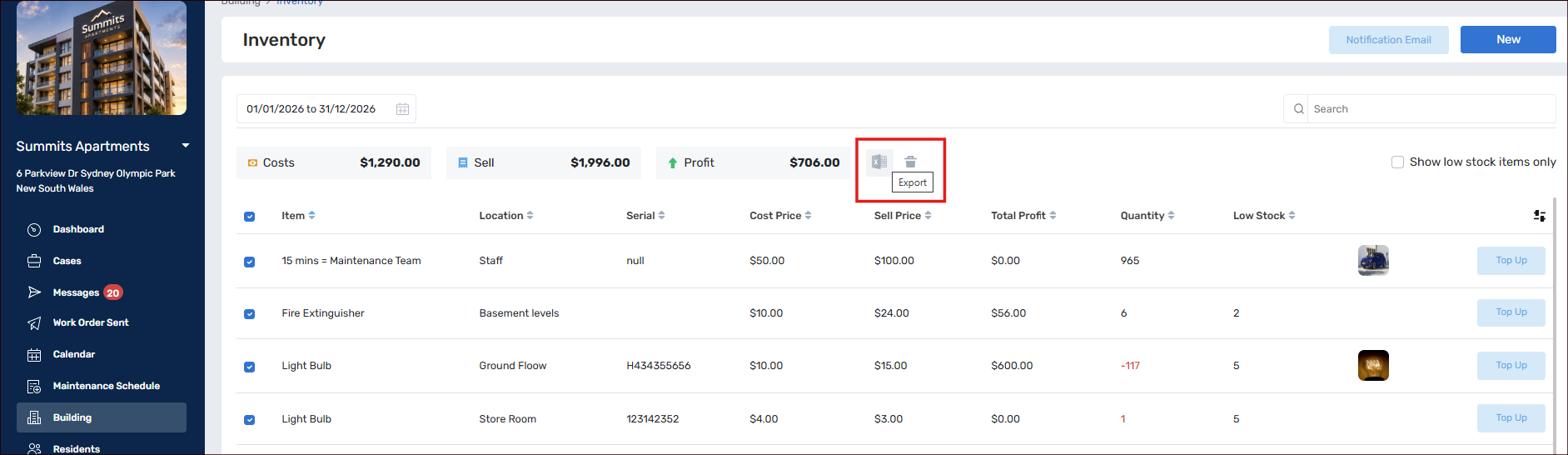
Deleting an Inventory item is a permanent action and is irretrievable.
Video Walk Through
Inventory Feature Setup and Usage - Watch Video
Tips and FAQs
Why is an item's quantity shown in red? Red means the quantity is at or below your low stock level, or has gone negative because more was used than was recorded. Top up the item to correct it.
What does Unlimited mean? The item is not counted, so its quantity never runs down. It suits services such as labour.
How do I see which items need reordering? Tick Show low stock items only above the table.
How do I get warned before I run out? Tick Low stock reminder on the item, enter a low stock number, and choose to send an email notification.
Where do I see profit? The Costs, Sell and Profit totals at the top of the page, and Total Profit for each item, reflect the date range you have selected.