
In‑House Services allows building managers to offer bookable services to residents through the MYBOS Community Portal.
Building Managers can create free or paid services, add products, set visibility, terms and conditions, notification emails, and Stripe payments, while residents can browse available services, place orders, and receive confirmation. Once an order is submitted, building managers can track payment and update the order status from start to completion.
If you receive a message saying the feature isn't enabled please contact our sales team.
How to Create an In-house Service
Step by Step Walkthrough
Before creating your In-House Service, it is recommended to create and connect your Stripe account. Read more here
Step 1: In the Building Manager Web App, navigate to Community and click the In-house Services widget.
Step 2: To create a new service, click the blue New Service button in the top right.
Step 3: Provide the relevant information for the service.
❗The following fields are mandatory:
- Service Name
- Service Photo
- Notification Emails
Optional configuration settings include:
- Add to cart behaviour - enables residents to add multiple items to their cart instead of checking things out one at a time.
- Visible to residents - toggled off results in the service being removed for residents
- T&C's - relative to your building and service provided.
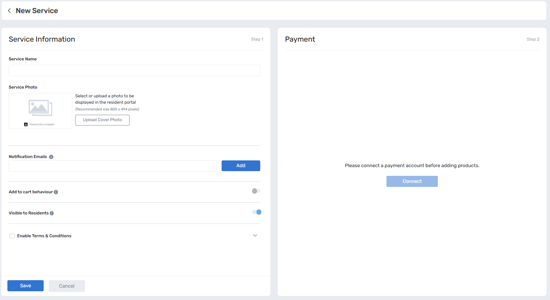
Step 4: Press Save to finalise.
🗒️ You may notice that there is no option for price/payment, that is configured in the next step.
Adding a New Product
Step 5: In the right panel, click Add New Product to begin configuring the payment method and individual products.
❗If you have not setup finance and payment methods, you will need to do so beforehand. Otherwise, this prompt will appear. To configure from here, simply click "Confirm" to be redirected.
A detailed setup guide can be found here.
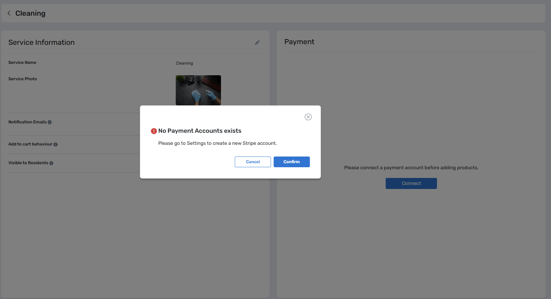
Step 6: Open the payment account selector, select the correct payment account and click Connect.
Step 7: Now that payment is configured, you can begin adding New Products. Click the blue Add New Product button in the right panel.
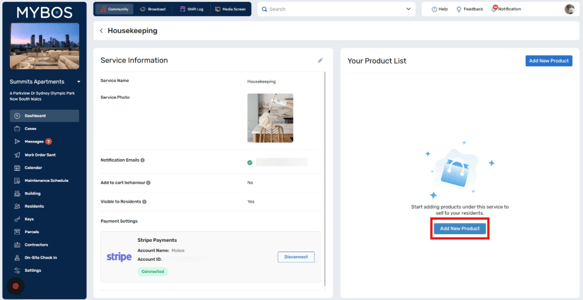
Step 8: Enter the product name as well as other relevant service details. Click "Save" to finalise
❗In‑house Services uses Stripe to process payments, as a result, you will need an active Stripe account to enable any paid services. If you encounter issues setting up Stripe, please contact Stripe directly via their support portal