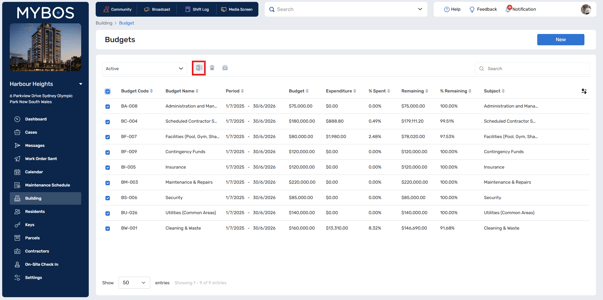
Monitor budget status to keep spending aligned with approved limits and support best-practice building management.
Regular budget tracking gives managers clear visibility over expenditure, helps prevent overspending, improves financial accountability, and makes it easier to plan maintenance, prioritise works, and justify decisions with confidence.
How to Use the Budget Feature
Step by Step Walkthrough
Step 1: Navigate to the Building Manager Web App Dashboard
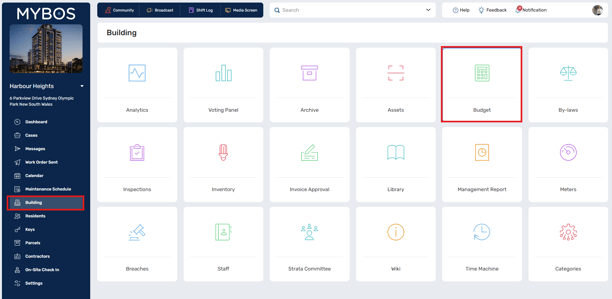
Step 2: To go to Budgets, click "Building" and select the Budget widget.
Step 3: This provides a dashboard of all active budgets.
You can utilise the "Active" and "Archive" sections to manage old account codes
Step 4: To create a new budget, click "New" in the top right.
Step 5: Enter budget code in the Budget Code field alongside all relevant details. From here, you can also bulk add budgets and import from excel.
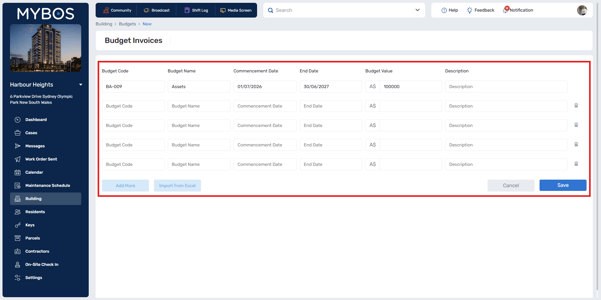
Step 6: Click Save to finalise.
For each budget, you can see expenditure as well as invoices attached to the expense and budget if logged properly. You can also attach invoices straight from here.

Step 7 (Optional): You can also use the export to Excel feature to generate reports on budget spending, amounts, and remaining balances.