
Option 1 (Self Service)
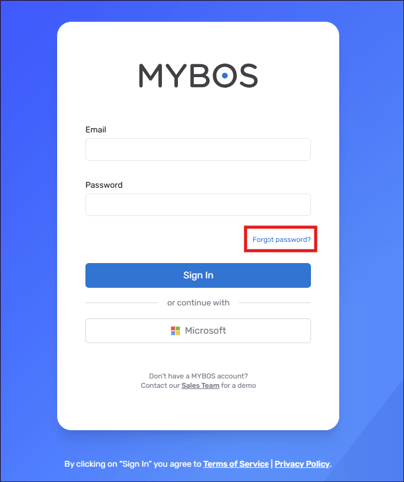
- Go to https://app.v4.mybos.com/ and click on the Forgot password? link.
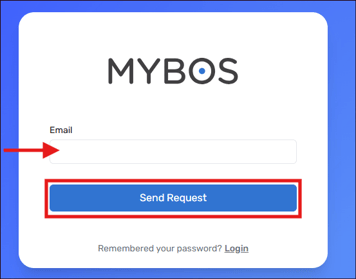
- Enter your email and Send Request
- Check your inbox for the password reset link
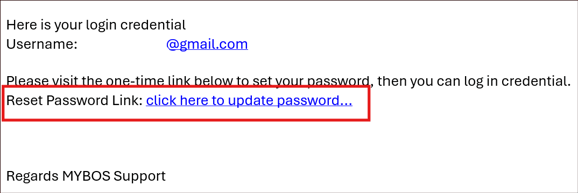
- Note: This link expires within 48 hours.
- Follow the link in the email to reset your password.
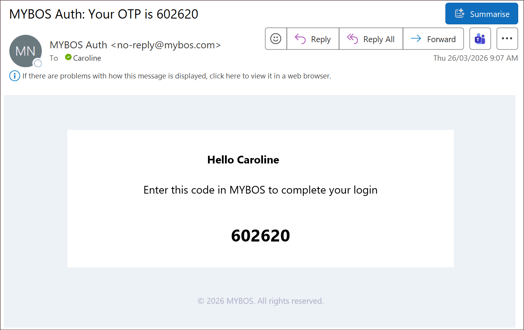
- Note: if you have Multi-factor Authentication on, you will be prompted for a code like below.
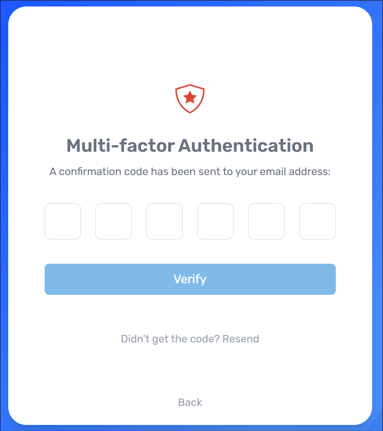
- This will be sent through to your email, please copy/paste this into MYBOS to give you access.
To reset the password on a User's behalf, you'll need access to the Company Portal, i.e. click on your profile name top right corner -> select Switch to Company Portal

Option 2 (User self-reset via email)
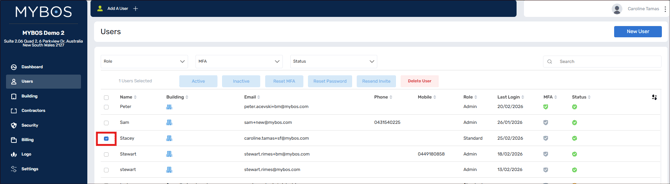
- Click on Users in the menu, then select the checkbox next to your User name
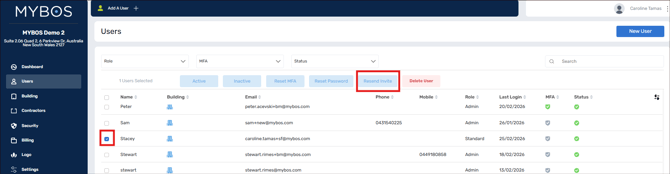
- Select Resend Invite
- This will trigger an automatic email to be sent to the User's email, e.g.
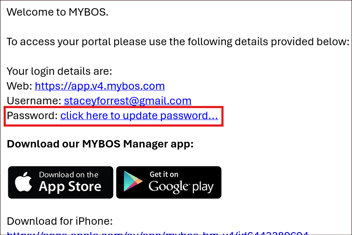
- Note: This link expires within 48 hours.
- This allows the User to reset the password themselves, along with their username + MYBOS link
Option 3 (Set new password)
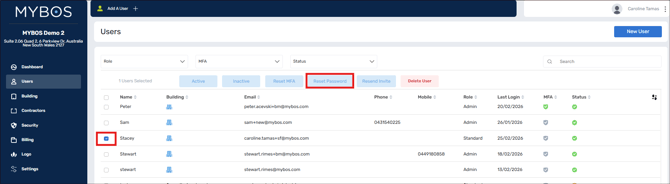
- Click on Users in the menu, then select the checkbox next to your User name
- Select Reset Password
- Enter in a new password.
- Ensure the new password is at least 8 characters long and can include alphanumeric characters, uppercase and lowercase letters, and special characters.
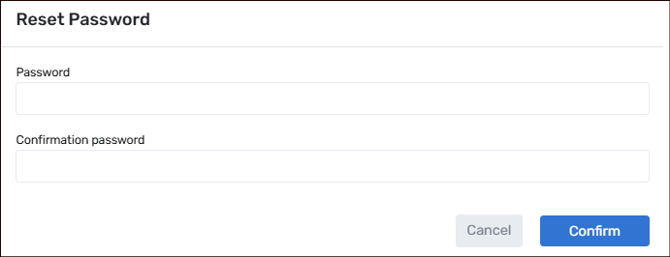
- Ensure the new password is at least 8 characters long and can include alphanumeric characters, uppercase and lowercase letters, and special characters.
- Send the new password and username to your Admin/Standard User via a separate email for security purposes.
Option 4 (Set new password)
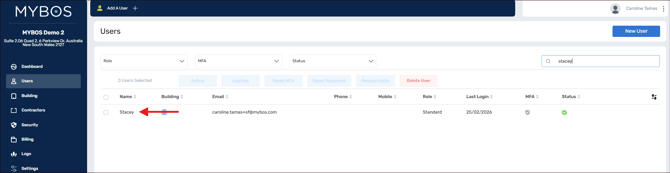
- Click on Users in the menu, then select the User name to pop into the profile
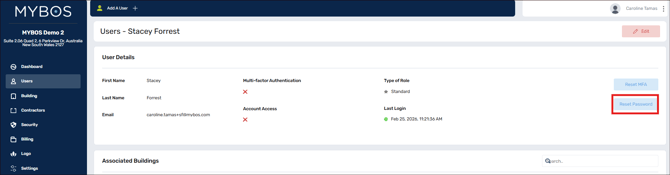
- Select Reset Password
- Enter in a new password.
- Ensure the new password is at least 8 characters long and can include alphanumeric characters, uppercase and lowercase letters, and special characters.
- Ensure the new password is at least 8 characters long and can include alphanumeric characters, uppercase and lowercase letters, and special characters.
- Send the new password and username to your Admin/Standard User via a separate email for security purposes.