---
title: "Step 7: How to Create a Maintenance Schedule"
description: Learn how to create a maintenance schedule to streamline the upkeep of important assets and warranties.
---
[Skip to content](https://support.mybos.com/knowledge-base/how-to-create-a-maintenance-schedule#main-content)
[More support](https://support.mybos.com/knowledge-base/kb-tickets/new?hsLang=en-au)
[](https://support.mybos.com/knowledge-base?hsLang=en-au)
- [Product Updates](https://productupdates.mybos.com/whats-new)
- [Getting Started](https://support.mybos.com/knowledge-base/getting-started)
- [Building Managers](https://support.mybos.com/knowledge-base/building-manager)
- [Administrators](https://support.mybos.com/knowledge-base/administrator)
- [Residents](https://support.mybos.com/knowledge-base/residents)
- [Training Academy](https://mybos.com/support/training-academy/)
Open main navigation
Close main navigation
- [Product Updates](https://productupdates.mybos.com/whats-new)
- [Getting Started](https://support.mybos.com/knowledge-base/getting-started)
- [Building Managers](https://support.mybos.com/knowledge-base/building-manager)
- [Administrators](https://support.mybos.com/knowledge-base/administrator)
- [Residents](https://support.mybos.com/knowledge-base/residents)
- [Training Academy](https://mybos.com/support/training-academy/)
- [More support](https://support.mybos.com/knowledge-base/kb-tickets/new)
- [Contact us](https://support.mybos.com/knowledge-base/contact-us)
[Contact us](https://support.mybos.com/knowledge-base/contact-us?hsLang=en-au)
How can we help you?
- There are no suggestions because the search field is empty.
1. [MYBOS Knowledge Base](https://support.mybos.com/knowledge-base?hsLang=en-au)
2. [Getting Started](https://support.mybos.com/knowledge-base/getting-started?hsLang=en-au)
# Step 7: How to Create a Maintenance Schedule
## Learn how to create a maintenance schedule to streamline the upkeep of important assets and warranties.
**Maintenance schedule is simply your preventive maintenance plan for the building. It involves regular servicing, repairs or maintenance of the building assets, equipments and facilities to ensure that everything operates safely and efficiently.**
### How to Create a Maintenance Schedule
💡 Maintenance Schedule is for planned, repeating preventative tasks. Cases are for one-off reactive jobs.
#### Step by Step Walkthrough
**Step 1:** Navigate to the Building Manager Web Portal dashboard.
**Step 2:** Select Maintenance Schedule in the left hand menu. A form will open with three sections. Event Information, Asset Information and Job Information.
**Step 3:** Click "**New**" to create a new Maintenance Schedule in the top right corner. A form will open with three sections: Event Information, Asset Information, and Job Information
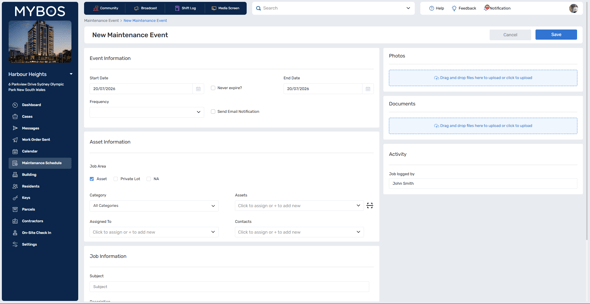
**Step 4:** Fill in the event information. This is what controls scheduling including start/end dates, recurrence frequency, and email reminders.
Start Date
→ Select when the first maintenance occurrence takes place.
End Date / Never Expire
→ Tick "Never expire" to run indefinitely, or set an end date to stop automatically.
Frequency
→ Select the desired frequency. A maintenance event will be created at your selected frequency.
Email Notifications
→ Tick to enable. Choose from: 1 day, 1 week, 2 weeks, or 1 month before. For quarterly visits, 1 month before is recommended.
💡 Email notifications go to contacts assigned to the event. Make sure contractor contact details are up to date before setting this up.
**Step 5:** Attach the Asset and assign the contractor. If you have already set up all your assets beforehand (highly recommended) you can easily select the asset and the preferred contractor will be connected. You can also add other contractors or create an asset from this menu
Job Area
→ Select Asset (default), Private Lot, or NA depending on what's being maintained.
Category
→ Filter the asset list by type (e.g. Mechanical, Electrical, Fire Safety).
Assets
→ Click to select. Multiple assets can be attached to one event. Use "+ add new" to create an asset on the spot.
Contractor
→ Auto-populates from the asset record. Add alternate contacts via the Contacts field if needed.
❗If the wrong contractor is auto-populating, check and update the asset record under Building → Assets
**Step 6:** Fill in the Job Information. This is sent directly to the contractor so it is recommended to be as specific as possible.
**Step 7:** Add photos and/or documents by clicking the blue upload box.
Example documents can include
- Photos → before service photos or reference images for the contractor
- Documents → service agreements, checklist, compliance certificates, or maintenance manuals.
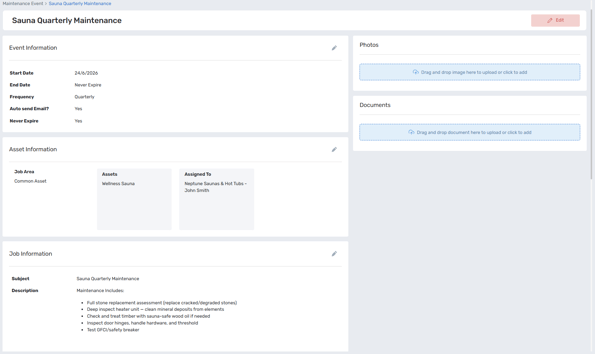
**Step 8**: Press Save to finalise the maintenance schedule.
[](https://support.mybos.com/hubfs/image-png-Jul-20-2026-12-16-14-4539-AM.png?hsLang=en-au)
Ready to move to the next step?
Continue with the next part of your building setup.
[Next step →](https://support.mybos.com/knowledge-base/creating-a-new-case?hsLang=en-au)
- [Getting Started](https://support.mybos.com/knowledge-base/getting-started?hsLang=en-au)
- [Features](https://support.mybos.com/knowledge-base/features?hsLang=en-au#main-content)
- [Building Manager Dashboard](https://support.mybos.com/knowledge-base/features?hsLang=en-au#building-manager-dashboard)
- [Community](https://support.mybos.com/knowledge-base/features?hsLang=en-au#community)
- [Marketplace](https://support.mybos.com/knowledge-base/features?hsLang=en-au#marketplace)
- [Cases](https://support.mybos.com/knowledge-base/features?hsLang=en-au#cases)
- [Messages](https://support.mybos.com/knowledge-base/features?hsLang=en-au#messages)
- [Calendar](https://support.mybos.com/knowledge-base/features?hsLang=en-au#calendar)
- [Maintenance Schedule](https://support.mybos.com/knowledge-base/features?hsLang=en-au#maintenance-schedule)
- [Building](https://support.mybos.com/knowledge-base/features?hsLang=en-au#building)
- [Keys](https://support.mybos.com/knowledge-base/features?hsLang=en-au#keys)
- [Parcels](https://support.mybos.com/knowledge-base/features?hsLang=en-au#parcels)
- [Contractors](https://support.mybos.com/knowledge-base/features?hsLang=en-au#contractors)
- [On-Site Check In](https://support.mybos.com/knowledge-base/features?hsLang=en-au#on-site-check-in)
- [Troubleshooting](https://support.mybos.com/knowledge-base/troubleshooting?hsLang=en-au#main-content)
- [FAQ](https://support.mybos.com/knowledge-base/troubleshooting?hsLang=en-au#faq)
- [Administrator](https://support.mybos.com/knowledge-base/administrator?hsLang=en-au#main-content)
- [Configuration](https://support.mybos.com/knowledge-base/administrator?hsLang=en-au#configuration)
- [MYBOS Web Platform](https://support.mybos.com/knowledge-base/administrator?hsLang=en-au#mybos-web-platform)
- [Reporting](https://support.mybos.com/knowledge-base/administrator?hsLang=en-au#reporting)
- [Building Manager](https://support.mybos.com/knowledge-base/building-manager?hsLang=en-au#main-content)
- [Building Managers - Web Portal](https://support.mybos.com/knowledge-base/building-manager?hsLang=en-au#building-managers-web-portal)
- [Building Configuration](https://support.mybos.com/knowledge-base/building-manager?hsLang=en-au#building-configuration)
- [Residents](https://support.mybos.com/knowledge-base/building-manager?hsLang=en-au#residents)
- [Maintenance & Work Orders](https://support.mybos.com/knowledge-base/building-manager?hsLang=en-au#maintenance-work-orders)
- [Communication](https://support.mybos.com/knowledge-base/building-manager?hsLang=en-au#communication)
- [Community & Amenities](https://support.mybos.com/knowledge-base/building-manager?hsLang=en-au#community-amenities)
- [Reporting](https://support.mybos.com/knowledge-base/building-manager?hsLang=en-au#reporting)
- [Integrations](https://support.mybos.com/knowledge-base/building-manager?hsLang=en-au#integrations)
- [Residents](https://support.mybos.com/knowledge-base/residents?hsLang=en-au#main-content)
- [Resident App](https://support.mybos.com/knowledge-base/residents?hsLang=en-au#resident-app)
- [Resident Web Portal](https://support.mybos.com/knowledge-base/residents?hsLang=en-au#resident-web-portal)
- [MYBOS Solutions](https://support.mybos.com/knowledge-base/mybos-solutions?hsLang=en-au)
- [Feature Updates](https://support.mybos.com/knowledge-base/feature-updates?hsLang=en-au)
[](http://mybos.com)
Suite 1.01 Level 1, 6 Parkview Drive
Sydney Olympic Park
New South Wales, 2127
Australia
Copyright © 2026, mybos.com