
What is a cache, and why does it matter?
Your browser saves copies of websites you visit to help pages load faster. Sometimes these saved copies get out of date, which can cause display issues. Clearing the cache forces your browser to load a fresh version of the page.
❗ It won't delete your passwords, bookmarks, or account information.
Note: your first move should always be to refresh your screen first using the browser icon 
Tutorials per browser
Google Chrome
- Click the three dots (⋮) in the top-right corner of the browser
- Select Settings
- Click Privacy and security in the left-hand menu
- Click Delete browsing data
- Set the time range to Last 24 hours
- Make sure Cached images and files and Cookies and other side data is ticked and anything else you don't want deleted is unticked.
- Click Delete data
- Refresh the page and try again
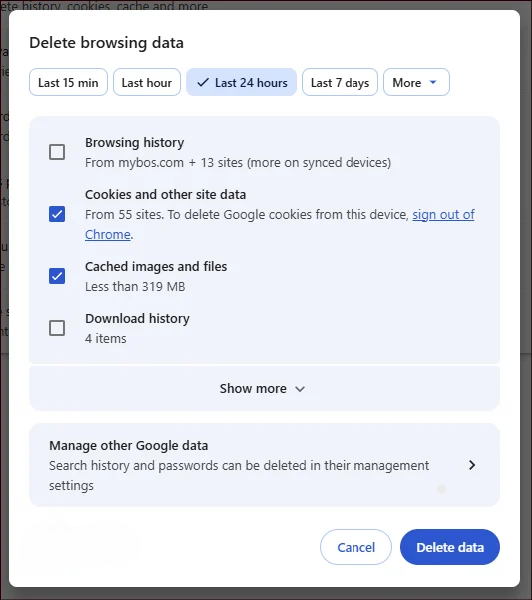
Shortcut: Press Ctrl + Shift + Delete (Windows) or Cmd + Shift + Delete (Mac) to jump straight to step 4.
Microsoft Edge
- Click the three dots (⋯) in the top-right corner of the browser
- Select Settings
- Click Privacy, search, and services in the left-hand menu
- Under Clear browsing data, click Choose what to clear
- Set the time range to Last 24 Hours
- Make sure Cached images and files and Cookies and other side data is ticked and anything else you don't want deleted is unticked.
- Click Clear now
- Refresh the page and try again
Shortcut: Press Ctrl + Shift + Delete to jump straight to step 4.
Safari (Mac)
- Click Safari in the top menu bar
- Select Settings (or Preferences on older versions)
- Click the Advanced tab
- Tick Show Develop menu in menu bar (if it isn't already ticked)
- Click Develop in the top menu bar
- Select Empty Caches
- Refresh the page and try again
Safari (iPhone / iPad)
- Open the Settings app on your device
- Scroll down and tap Apps, then tap Safari
- Scroll down and tap Clear History and Website Data
- Tap Clear to confirm
- Re-open Safari and try again
This will also clear your browsing history on that device. It won't affect your passwords or bookmarks.
Mozilla Firefox
- Click the three lines (☰) in the top-right corner of the browser
- Select Settings
- Click Privacy & Security in the left-hand menu
- Scroll down to Cookies and Site Data and click Clear Data
- Make sure Cached Web Content is ticked and anything else you don't want deleted is unticked.
- Click Clear
- Refresh the page and try again
Shortcut: Press Ctrl + Shift + Delete (Windows) or Cmd + Shift + Delete (Mac) to jump straight to step 4.
Still having trouble?
If clearing the cache doesn't resolve the issue, try opening the software in a private/incognito window to rule out any browser extension conflicts. If the problem persists, contact our support team and let us know what you were doing when the issue occurred.
✉️ Email: support@mybos.com