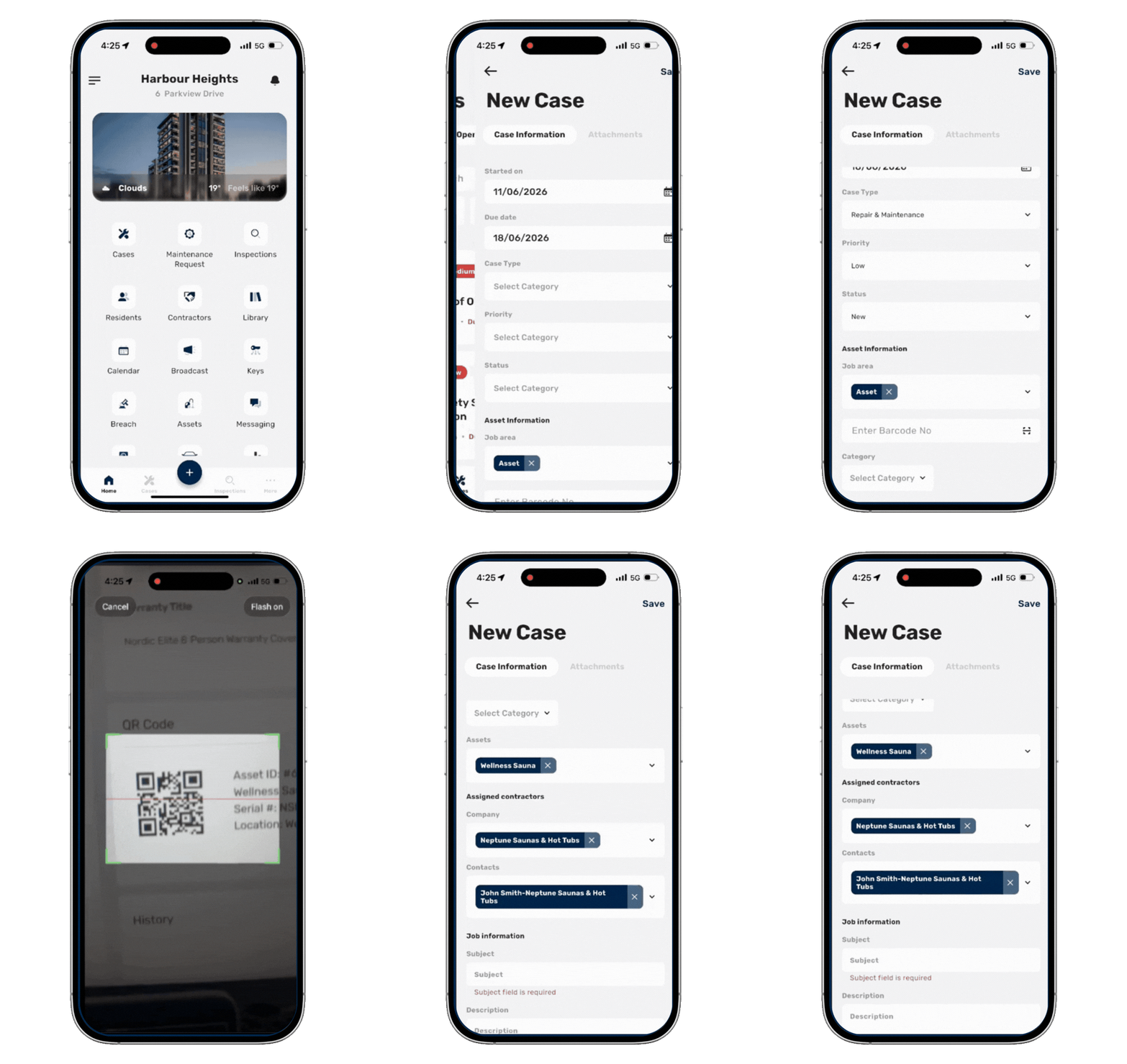
Using the Assets feature in MYBOS helps centralise key asset information, contractor details, photos, documents and warranty records in one place, making building operations more organised and efficient.
The asset management feature also also supports faster fault reporting and case creation through QR codes, helping teams link issues to the correct asset quickly and accurately.
How to Add Assets to MYBOS
Step by Step Walkthrough
Step 1: In the MYBOS Building Manager Web Portal, navigate to the Building feature in the left-hand menu
Step 2: Click the Assets widget, to navigate to the assets page.
Step 3: To create a new asset, click the blue New button in the top right of the asset page.
Step 4: Fill in all relevant details of your asset (the more the better).
❗The following fields are mandatory:
- Asset Name
- Category
The remaining fields are optional, but it is highly recommended to input as much detail as possible.
When selecting a category, new categories can be created by selecting the "Add New Category" option at the bottom of the drop down menu.
📒 Categories can also be managed globally by navigating to:
Settings → Categories & Descriptions
Changes made in Categories & Descriptions are available throughout the MYBOS platform and can be used across multiple modules and contractor records.
Step 5: To further streamline building operations, assign a contractor to the asset by selecting a service provider from the Service Company dropdown.
Once a contractor is selected, the contact fields will automatically populate with the contractor's primary contact details, reducing manual data entry and ensuring consistency across records.
Step 6: Next, attach photos, relevant documents (instruction manuals etc) and warranty information. These are optional, but highly recommended.
Step 7: Click Save in the top right to register the asset.
Step 8: Once the asset has been created, you are able to generate a QR Code of the asset. Attaching QR codes to your assets provides a quick and efficient way to quickly add an asset to a case in the mobile app.
Best Use Scenario for the QR Code
💡If you notice an asset with a fault, you can quickly create a case using the MYBOS Manager App and the created QR Code.
Step 1: Open the MYBOS Manager App and click the "+" symbol located in the middle of the bottom navigation bar.
Step 2: Tap Create a New Case.
Step 3: Scroll down to the Asset Information section.
Step 5: In the Enter Barcode No. field, tap the scanner icon located on the right-hand side. Scan the asset's QR code using your device's camera.
Step 7: Once scanned, the asset will automatically be linked to the case.