
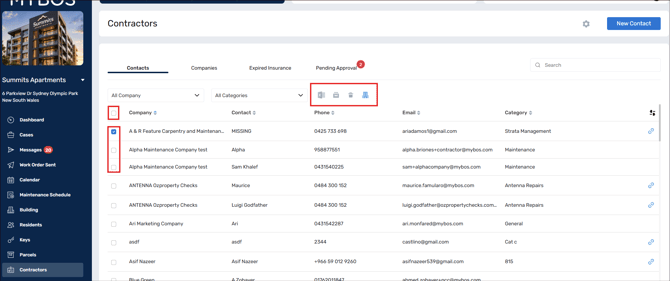
Tick the checkbox next to each contractor you want to work with underneath the Contacts and Companies tabs. Four icons then appear above the list: Export, Archive, Delete and Designate. Hover over an icon to see its name.
To select every contractor on the page, tick the checkbox in the table header. Untick all boxes to hide the icons again.
Exporting contractors
Step 1: Go to Contractors and open the Contacts or Companies tab.
Step 2: Use the All Company, All Categories or search options to find the contractors you need.
Step 3: Tick the contractors you want to include.
Step 4: Click the Export icon, which will start an Excel download.

Archiving contractors
Archive contractors you no longer use but want to keep a record of, for example a company that has stopped working at your building.
Step 1: Tick the contractors you want to archive.
Step 2: Click the Archive icon and confirm when asked.
Note: You can delete Contacts associated with Contractors, but you cannot Archive Contacts within a Contractor.

Deleting contractors
Step 1: Tick the contractors you want to remove.
Step 2: Click the Delete icon and confirm when asked.

Deleting a Contractor is a permanent action. If you might need their history later, archive them instead.
Designating contractors to buildings
Designate lets you make the same contractor available at other buildings, so you don't need to enter their details again at each one.
Step 1: Tick the contractors you want to share.
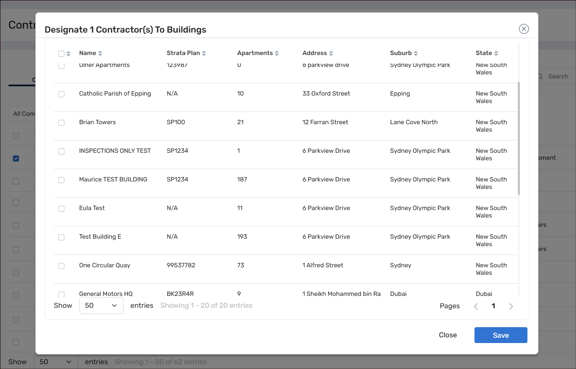
Step 2: Click the Designate icon. The Designate Contractor(s) To Buildings window opens and lists the buildings you can choose from, showing Name, Strata Plan, Apartments, Address, Suburb and State.
Step 3: Tick each building you want the contractors designated to.
Step 4: Click Save. To leave without changing anything, click Close.

Showing and hiding columns
Click the column icon at the top right of the list to choose which columns to display, and use the reset icon next to it to return to the default columns.
