
When a manager sends a work order, quote request or case summary, the contractor receives a link that opens the case directly, where they can change its status and upload photos, quotes, invoices and documents.
Access: Contractors open the link in the work order/quote/case summary they receive, so they do not need a MYBOS account. Admins control the portal under Settings ➔ Email & Template Options: Contractor Portal.
Any change a contractor makes is recorded in the case, so the building manager sees the update straight away without chasing by phone or email.
How Contractors Get Access
A contractor reaches the portal through the work order, quote request or case summary you send them.
Step 1: Open the case and click the green Email button.
Step 2: Set a due date and choose Work Order, Quote or Case Summary.
Step 3: Select the items you want to share and the contractors who should receive it. Contractors linked to the case's assets are preselected, and you can add others.
Step 4: Send it. The contractor receives a link within the PDF that opens the case directly in the portal.
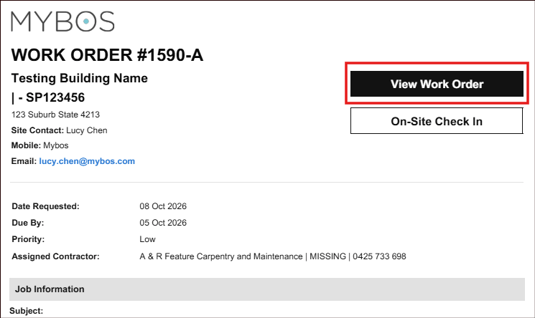
To see what was sent, open the Case, go to Emails Sent and click the red PDF icon.
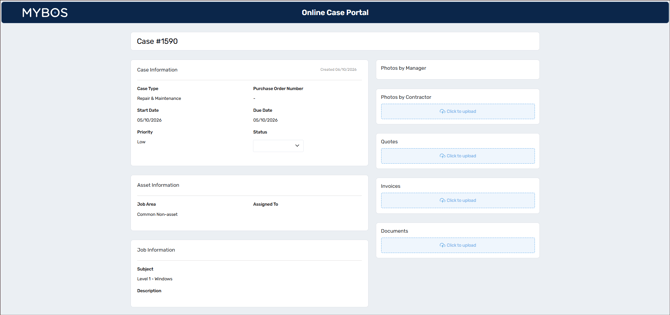
What Contractors Can See and Do
When a contractor opens the link, they see the case screen and can work on it directly.
|
Action |
How it works |
|---|---|
|
View the case |
The case screen opens from the link in the work order. |
|
Change the status |
Choose a new status from the dropdown. The contractor receives a confirmation, and the change appears in the case. |
|
Upload files |
Use the upload buttons to attach photos, quotes, invoices and documents to the case. |
Contractors can only choose from the statuses you have shared with them (see Controlling What Contractors Can Do below).
Insurance and documents: The portal is also used to keep insurance up to date. When a contractor's insurance or documents expire, the Contractor Insurance-Document Update reminder email gives them a link to update their documents or insurance policy via the MyBos portal.
Controlling What Contractors Can Do
Admins decide how the portal behaves.
|
Setting |
Where |
What it does |
|---|---|---|
|
Contractor Portal (Default State) |
Settings ➔ Email & Template Options: Contractor Portal |
A switch that turns the portal on or off for the building. |
|
Manager Notification |
Settings ➔ Email & Template Options: Contractor Portal |
Click Add Email to add the addresses that should be notified of contractor activity. |
|
Email Templates |
Settings ➔ Email & Template Options: Contractor Portal |
Six templates, each with its own on/off switch: contractor uploads an image, documents, quotes or invoices; contractor changes case status; and insurance update reminder. Edit the subject and body using place-holders, then click Update. Use Duplicate to other buildings to copy a template. |
|
Statuses contractors can use |
Settings ➔ Cases ➔ Case Status |
Tick Share with contractor when adding or editing a status. This lets the contractor update the case to that status from the portal. |
Only the statuses you share are available to contractors, so tick the ones that make sense for them (for example, in progress or completed) and leave internal statuses unshared.
More information on configuring Contractor settings here.
Tips and FAQs
Does a contractor need a MYBOS login? No. Contractors do not need resident or building manager access to the building. They open the link in the work order to reach the case.
Can contractors see everything in the case? They see the case screen opened from their link. Share only the statuses and information that are appropriate for them, and keep internal statuses unshared.
What can a contractor upload? Photos, quotes, invoices and documents, using the upload buttons on the case.
How do I know a contractor has updated a case? The update appears in the case. You can also add notification email addresses and edit the six notification email templates under Settings > Contractor Settings > Contractor Portal.
A contractor says they can't find the status they need. Why? Contractors can only choose statuses that have been shared with them. Go to Settings > Cases > Case Status, add or edit the status and tick Share with contractor.
What happens when a contractor's insurance expires? The Contractor Insurance-Document Update reminder is sent, asking them to update their documents or insurance policy through the portal link. You can edit or switch off this template under Settings > Contractor Settings > Contractor Portal.
How do I see what was sent to a contractor? Open the case, go to Emails Sent and click the red PDF icon. Work orders are green, quotes orange and case summaries blue.
Need to check: Turning portal access off for an individual contact, and whether contractors can add comments in the portal, were not confirmed in the live system.