
All available Building level MYBOS payment account records can now be found under one area in settings called "Finance & Payment"
Contents
MYBOS has introduced an updated system for managing and configuring payment methods for services such as Amenity Bookings and In-house Services. These will begin to appear in the "Finance & Payment" areas of the Settings menu.
❗Any pre-existing Stripe accounts that are attached to an Amenity of In-House Service will be migrated to the new UI, so you do not need to do anything.
However, we recommend visiting the Finance & Payment settings menu to review Stripe accounts and consolidate Amenity and In-House Services into one Stripe account.
How to Configure Stripe in MYBOS
Step by Step Walkthrough
Step 1: In the MYBOS Building Manager Portal, navigate to Settings.
Step 2: Under Settings, click the Finance & Payment setting located in the bottom "Other" menu.
Step 3: Click "Add Stripe Account" in top right. A pop-up should open asking you to fill out the following details of the Stripe Account:
- Account Name
- Business Name
Step 3: A new account will be created with a status of "Not Connected". You will now need to connect your Stripe account to the payment account you have just created.
You can do so by clicking the blue Connect button on the right side of the account.
Step 4: The Stripe website will launch asking you to enter your email address. Fill in your account details to login or create an account.
❗If you encounter any account issues while logging into or creating your Stripe account, you will need to reach out Stripe support for assistance.
Step 5: Once your Stripe account has been connected, the status should be Completed or Pending
- If it is stuck on Pending, wait a few minutes and refresh.
- If it is still Pending, click the Connect button to ensure there are no outstanding account verification issues.

Step 6: Once completed, you can use the account to connect a payment method to any amenity or service.
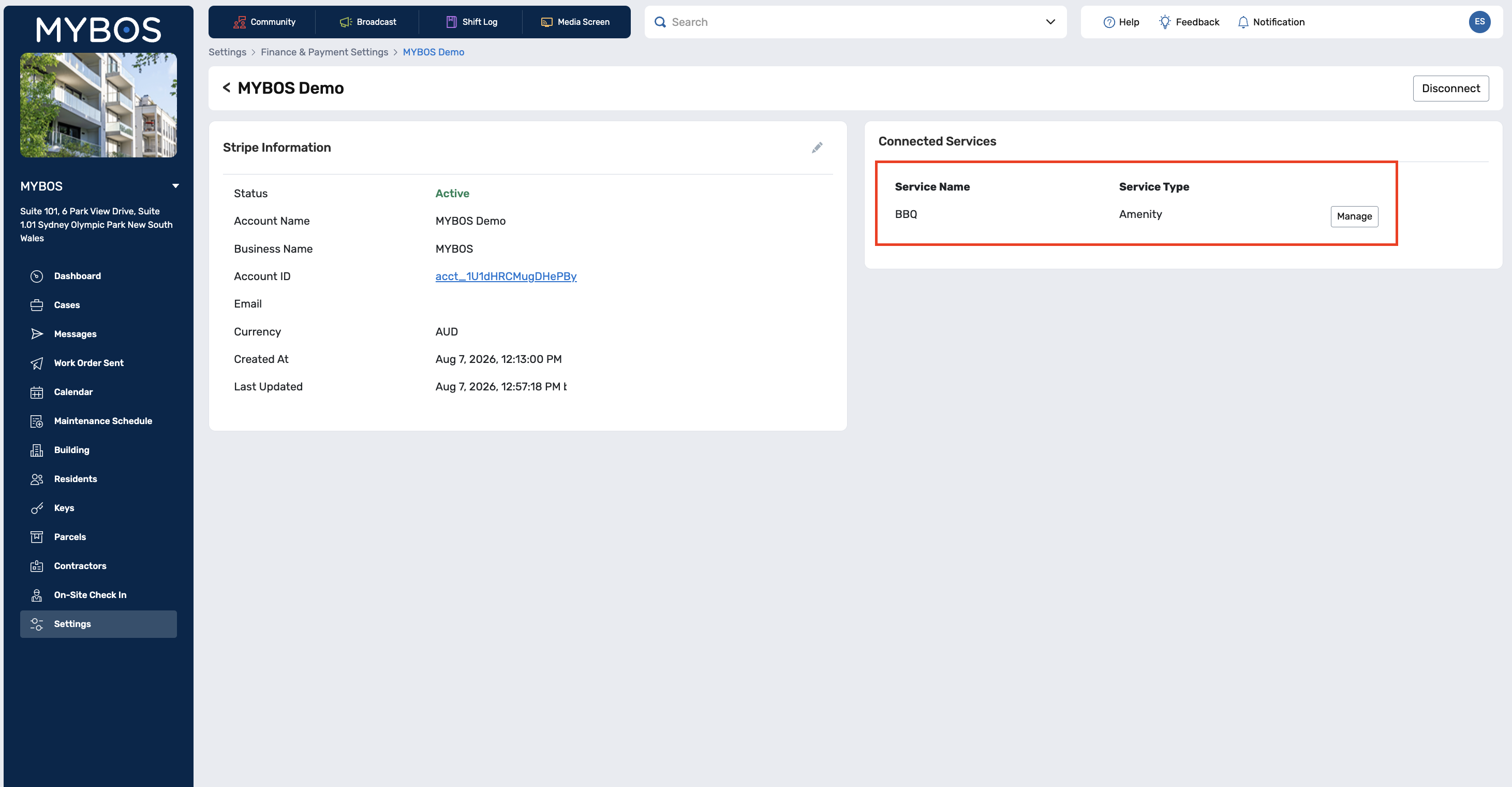
Once a user has added the payment account to Amenities and In-House Services, they are able to return to the Finance & Payment settings section to view the account record and connected services.
Frequently Asked Questions / Troubleshooting
1. Why does my account still say "Pending"?
This usually means Stripe itself has an outstanding requirement (identity verification, bank details, etc.) and is not a MYBOS issue. You will need to click back into onboarding and complete the required steps in Stripe.
2. Can I delete an account?
Yes, however, you will have to disconnect the individual connected services (Amenity Bookings, In-House Services) from the MYBOS payment account.
→ Using the manage button next to a service will redirect you to the relevant Connected Service to disconnect it.
→ If you attempt to disconnect a MYBOS payment account record before removing the Connected Service, you will receive an error notification.
3. What's the difference between 'Connect' and 'Invite'?"
Connect = BM has their own Stripe login and connects directly;
Invite = sends the connection request to a third party (e.g. an external operator) to link their own Stripe account.
4. How do I disconnect just one Amenity from a shared Stripe account?
Use 'Manage' next to that service on the Payment Account detail screen, this routes to the Amenity/In House Service itself to disconnect, not the payment account.