---
title: Configuring Parcel Management
description: Learn how to set up MYBOS Parcel Management, configure default parcel types, locations, and staff, and enable resident notifications, overdue rules, and automatic reminders.
---
[Skip to content](https://support.mybos.com/knowledge-base/configuring-parcel-management#main-content)
[More support](https://support.mybos.com/knowledge-base/kb-tickets/new?hsLang=en-au)
[](https://support.mybos.com/knowledge-base?hsLang=en-au)
- [Product Updates](https://productupdates.mybos.com/whats-new)
- [Getting Started](https://support.mybos.com/knowledge-base/getting-started)
- [Building Managers](https://support.mybos.com/knowledge-base/building-manager)
- [Administrators](https://support.mybos.com/knowledge-base/administrator)
- [Residents](https://support.mybos.com/knowledge-base/residents)
- [Training Academy](https://mybos.com/support/training-academy/)
Open main navigation
Close main navigation
- [Product Updates](https://productupdates.mybos.com/whats-new)
- [Getting Started](https://support.mybos.com/knowledge-base/getting-started)
- [Building Managers](https://support.mybos.com/knowledge-base/building-manager)
- [Administrators](https://support.mybos.com/knowledge-base/administrator)
- [Residents](https://support.mybos.com/knowledge-base/residents)
- [Training Academy](https://mybos.com/support/training-academy/)
- [More support](https://support.mybos.com/knowledge-base/kb-tickets/new)
- [Contact us](https://support.mybos.com/knowledge-base/contact-us)
[Contact us](https://support.mybos.com/knowledge-base/contact-us?hsLang=en-au)
How can we help you?
- There are no suggestions because the search field is empty.
1. [MYBOS Knowledge Base](https://support.mybos.com/knowledge-base?hsLang=en-au)
2. [Building Manager](https://support.mybos.com/knowledge-base/building-manager?hsLang=en-au)
3. [Building Configuration](https://support.mybos.com/knowledge-base/building-manager?hsLang=en-au#building-configuration)
# Configuring Parcel Management
## Learn how to set up MYBOS Parcel Management, configure default parcel types, locations, and staff, and enable resident notifications, overdue rules, and automatic reminders.
Set up MYBOS Parcel Management by opening Parcels in the Building Manager Web Portal, selecting Parcel Settings, and configuring default parcel types, locations, and staff. You can also choose the first resident as the recipient, set when parcels become overdue, and enable automatic reminders for uncollected parcels.
### How to Set Up Parcel Management
### Step by Step Walkthrough
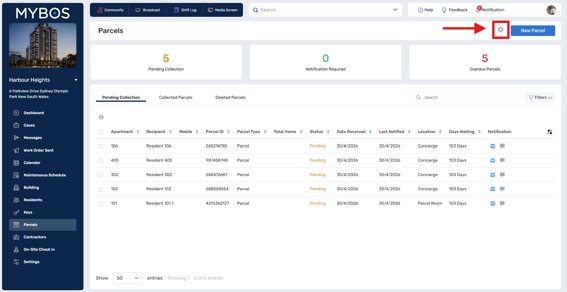
**Step 1:** Navigate to Parcels on the left-hand side of the MYBOS Building Manager Web Portal.
**Step 2:** Go to Parcel Settings by clicking the settings icon (  ) on the top right.
[Click to Enlarge](https://support.mybos.com/hubfs/image-png-Aug-11-2026-05-16-33-9045-AM.png?hsLang=en-au)
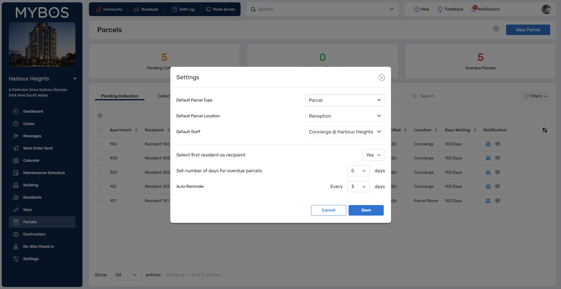
**Step 3:** Organise your default settings, these will be inputted automatically when you log parcels. There are many options to customise your parcel management. .
- **Default parcel type →** Common options include parcels, dry cleaning, letters or documents, food deliveries, and oversized items(Select “**Add new**” from the drop box to create a custom parcel type)
- **Default Parcel Location** → Common options include reception desk, concierge desk, parcel room, secure storage area, and mailroom (Select “**Add new**” from the drop box to create a custom parcel location)
- **Default Staff** → This is the staff member responsible for organising parcels. Common option include Building Manager or Concierge (Select “**Add new**” from the drop box to create a custom parcel location)
**Step 4:** Select first resident as recipient (if selected the "recipient" field auto populates with the first resident listed and they will be contacted).
**Step 5:** Set number of days for overdue parcels. After the selected days, the parcel will move to overdue and another notification will be sent to residents.
**Step 6:** Set up an auto reminder for residents to pick up their parcel.
[Click to Enlarge](https://support.mybos.com/hubfs/image-png-Aug-11-2026-05-17-22-9398-AM.png?hsLang=en-au)
- [Getting Started](https://support.mybos.com/knowledge-base/getting-started?hsLang=en-au)
- [Features](https://support.mybos.com/knowledge-base/features?hsLang=en-au#main-content)
- [Building Manager Dashboard](https://support.mybos.com/knowledge-base/features?hsLang=en-au#building-manager-dashboard)
- [Community](https://support.mybos.com/knowledge-base/features?hsLang=en-au#community)
- [Marketplace](https://support.mybos.com/knowledge-base/features?hsLang=en-au#marketplace)
- [Cases](https://support.mybos.com/knowledge-base/features?hsLang=en-au#cases)
- [Messages](https://support.mybos.com/knowledge-base/features?hsLang=en-au#messages)
- [Calendar](https://support.mybos.com/knowledge-base/features?hsLang=en-au#calendar)
- [Maintenance Schedule](https://support.mybos.com/knowledge-base/features?hsLang=en-au#maintenance-schedule)
- [Building](https://support.mybos.com/knowledge-base/features?hsLang=en-au#building)
- [Keys](https://support.mybos.com/knowledge-base/features?hsLang=en-au#keys)
- [Parcels](https://support.mybos.com/knowledge-base/features?hsLang=en-au#parcels)
- [Contractors](https://support.mybos.com/knowledge-base/features?hsLang=en-au#contractors)
- [On-Site Check In](https://support.mybos.com/knowledge-base/features?hsLang=en-au#on-site-check-in)
- [Troubleshooting](https://support.mybos.com/knowledge-base/troubleshooting?hsLang=en-au#main-content)
- [FAQ](https://support.mybos.com/knowledge-base/troubleshooting?hsLang=en-au#faq)
- [Administrator](https://support.mybos.com/knowledge-base/administrator?hsLang=en-au#main-content)
- [Configuration](https://support.mybos.com/knowledge-base/administrator?hsLang=en-au#configuration)
- [MYBOS Web Platform](https://support.mybos.com/knowledge-base/administrator?hsLang=en-au#mybos-web-platform)
- [Reporting](https://support.mybos.com/knowledge-base/administrator?hsLang=en-au#reporting)
- [Building Manager](https://support.mybos.com/knowledge-base/building-manager?hsLang=en-au#main-content)
- [Building Managers - Web Portal](https://support.mybos.com/knowledge-base/building-manager?hsLang=en-au#building-managers-web-portal)
- [Building Configuration](https://support.mybos.com/knowledge-base/building-manager?hsLang=en-au#building-configuration)
- [Residents](https://support.mybos.com/knowledge-base/building-manager?hsLang=en-au#residents)
- [Maintenance & Work Orders](https://support.mybos.com/knowledge-base/building-manager?hsLang=en-au#maintenance-work-orders)
- [Communication](https://support.mybos.com/knowledge-base/building-manager?hsLang=en-au#communication)
- [Community & Amenities](https://support.mybos.com/knowledge-base/building-manager?hsLang=en-au#community-amenities)
- [Reporting](https://support.mybos.com/knowledge-base/building-manager?hsLang=en-au#reporting)
- [Integrations](https://support.mybos.com/knowledge-base/building-manager?hsLang=en-au#integrations)
- [Residents](https://support.mybos.com/knowledge-base/residents?hsLang=en-au#main-content)
- [Resident App](https://support.mybos.com/knowledge-base/residents?hsLang=en-au#resident-app)
- [Resident Web Portal](https://support.mybos.com/knowledge-base/residents?hsLang=en-au#resident-web-portal)
- [MYBOS Solutions](https://support.mybos.com/knowledge-base/mybos-solutions?hsLang=en-au)
- [Feature Updates](https://support.mybos.com/knowledge-base/feature-updates?hsLang=en-au)
[](http://mybos.com)
Suite 1.01 Level 1, 6 Parkview Drive
Sydney Olympic Park
New South Wales, 2127
Australia
Copyright © 2026, mybos.com