---
title: How to Configure On-Site Check In
description: Visitors and Contractors can now be tracked in MYBOS as part of On-Site Check In. This allows Building Managers to track who is onsite, why they're onsite and for how long each visit is.
---
[Skip to content](https://support.mybos.com/knowledge-base/configure-on-site-check-in#main-content)
[More support](https://support.mybos.com/knowledge-base/kb-tickets/new?hsLang=en-au)
[](https://support.mybos.com/knowledge-base?hsLang=en-au)
- [Product Updates](https://productupdates.mybos.com/whats-new)
- [Getting Started](https://support.mybos.com/knowledge-base/getting-started)
- [Building Managers](https://support.mybos.com/knowledge-base/building-manager)
- [Administrators](https://support.mybos.com/knowledge-base/administrator)
- [Residents](https://support.mybos.com/knowledge-base/residents)
- [Training Academy](https://mybos.com/support/training-academy/)
Open main navigation
Close main navigation
- [Product Updates](https://productupdates.mybos.com/whats-new)
- [Getting Started](https://support.mybos.com/knowledge-base/getting-started)
- [Building Managers](https://support.mybos.com/knowledge-base/building-manager)
- [Administrators](https://support.mybos.com/knowledge-base/administrator)
- [Residents](https://support.mybos.com/knowledge-base/residents)
- [Training Academy](https://mybos.com/support/training-academy/)
- [More support](https://support.mybos.com/knowledge-base/kb-tickets/new)
- [Contact us](https://support.mybos.com/knowledge-base/contact-us)
[Contact us](https://support.mybos.com/knowledge-base/contact-us?hsLang=en-au)
How can we help you?
- There are no suggestions because the search field is empty.
1. [MYBOS Knowledge Base](https://support.mybos.com/knowledge-base?hsLang=en-au)
2. [Building Manager](https://support.mybos.com/knowledge-base/building-manager?hsLang=en-au)
3. [Building Configuration](https://support.mybos.com/knowledge-base/building-manager?hsLang=en-au#building-configuration)
# How to Configure On-Site Check In
## In the Building Manager Portal, go to On-Site Check In and open Setup from the cog icon to add T&Cs, set geolocation rules, and optionally share it with other buildings.
On-Site Check In allows visitors and contractors to sign in at your building using a QR code, with optional Terms & Conditions acceptance and geolocation-based sign-in/sign-out controls. This guide walks through the full setup process in the Building Manager Portal.
### How to Configure On-Site Check In
### Step by Step Walkthrough
**Step 1:** In the Building Manager Portal, go to **On-Site Check In** located in the left panel.
**Step 2:** Click the **cog icon** in the top right corner to open Setup. From here you can configure **Terms & Conditions**, **Geolocation**, and **Building Sharing**.
**Step 3**: Under **Terms & Conditions**, click **+ Add New** to create requirements that visitors or contractors must accept before signing in — for example, general T&Cs, a site induction sign-off, or access requirements.
**Note:** You can create up to 10 sets of Terms & Conditions, and a single set can be applied across multiple visitor types.
**Step 4:** Under **Geolocation Services**, you can request a visitor or contractor's location when they sign in. There are three options to choose from:
- **Off** → Visitors and contractors are not asked for their location when signing in or out.
- **Optional** → Visitors and contractors are asked to share their location and can decline. Anyone who shares it and leaves the radius below is automatically signed out.
- **Required** → Visitors and contractors must share their location and be within the radius below to sign in. Anyone who leaves the radius is automatically signed out.
This does not track their movement directly, it only controls whether they can sign in outside a set radius, or whether they're automatically signed out when they leave it.
❗ If a user denies geolocation tracking, sign-out becomes entirely manual. If Geofencing is turned off altogether, sign-out is also entirely manual.

**Step 5** (optional): Turn on **Share with other buildings** to make On-Site Check In available across the other buildings listed in this section. When someone signs in, they'll be able to select the correct building if it differs from the main one.
**Step 6:** Once the basic setup is complete, click the **back arrow** next to Setup in the top left corner.
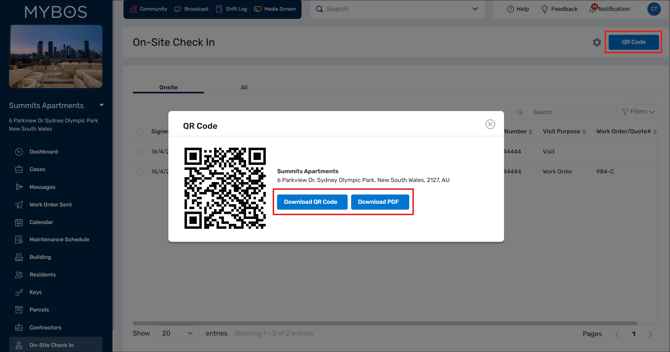
**Step 7:** Click the **QR Code** button to display your building's unique check-in QR code. This can be downloaded or printed for distribution at entry points.
### Frequently Asked Questions
##### Can I add custom visit types to the on-site check in?
At the moment, you cannot add custom visit types. The only available visit types are:
- Work Order
- Quote
- Visit
- Maintenance
---
- [Getting Started](https://support.mybos.com/knowledge-base/getting-started?hsLang=en-au)
- [Features](https://support.mybos.com/knowledge-base/features?hsLang=en-au#main-content)
- [Building Manager Dashboard](https://support.mybos.com/knowledge-base/features?hsLang=en-au#building-manager-dashboard)
- [Community](https://support.mybos.com/knowledge-base/features?hsLang=en-au#community)
- [Marketplace](https://support.mybos.com/knowledge-base/features?hsLang=en-au#marketplace)
- [Cases](https://support.mybos.com/knowledge-base/features?hsLang=en-au#cases)
- [Messages](https://support.mybos.com/knowledge-base/features?hsLang=en-au#messages)
- [Calendar](https://support.mybos.com/knowledge-base/features?hsLang=en-au#calendar)
- [Maintenance Schedule](https://support.mybos.com/knowledge-base/features?hsLang=en-au#maintenance-schedule)
- [Building](https://support.mybos.com/knowledge-base/features?hsLang=en-au#building)
- [Keys](https://support.mybos.com/knowledge-base/features?hsLang=en-au#keys)
- [Parcels](https://support.mybos.com/knowledge-base/features?hsLang=en-au#parcels)
- [Contractors](https://support.mybos.com/knowledge-base/features?hsLang=en-au#contractors)
- [On-Site Check In](https://support.mybos.com/knowledge-base/features?hsLang=en-au#on-site-check-in)
- [Troubleshooting](https://support.mybos.com/knowledge-base/troubleshooting?hsLang=en-au#main-content)
- [FAQ](https://support.mybos.com/knowledge-base/troubleshooting?hsLang=en-au#faq)
- [Administrator](https://support.mybos.com/knowledge-base/administrator?hsLang=en-au#main-content)
- [Configuration](https://support.mybos.com/knowledge-base/administrator?hsLang=en-au#configuration)
- [MYBOS Web Platform](https://support.mybos.com/knowledge-base/administrator?hsLang=en-au#mybos-web-platform)
- [Reporting](https://support.mybos.com/knowledge-base/administrator?hsLang=en-au#reporting)
- [Building Manager](https://support.mybos.com/knowledge-base/building-manager?hsLang=en-au#main-content)
- [Building Managers - Web Portal](https://support.mybos.com/knowledge-base/building-manager?hsLang=en-au#building-managers-web-portal)
- [Building Configuration](https://support.mybos.com/knowledge-base/building-manager?hsLang=en-au#building-configuration)
- [Residents](https://support.mybos.com/knowledge-base/building-manager?hsLang=en-au#residents)
- [Maintenance & Work Orders](https://support.mybos.com/knowledge-base/building-manager?hsLang=en-au#maintenance-work-orders)
- [Communication](https://support.mybos.com/knowledge-base/building-manager?hsLang=en-au#communication)
- [Community & Amenities](https://support.mybos.com/knowledge-base/building-manager?hsLang=en-au#community-amenities)
- [Reporting](https://support.mybos.com/knowledge-base/building-manager?hsLang=en-au#reporting)
- [Integrations](https://support.mybos.com/knowledge-base/building-manager?hsLang=en-au#integrations)
- [Residents](https://support.mybos.com/knowledge-base/residents?hsLang=en-au#main-content)
- [Resident App](https://support.mybos.com/knowledge-base/residents?hsLang=en-au#resident-app)
- [Resident Web Portal](https://support.mybos.com/knowledge-base/residents?hsLang=en-au#resident-web-portal)
- [MYBOS Solutions](https://support.mybos.com/knowledge-base/mybos-solutions?hsLang=en-au)
- [Feature Updates](https://support.mybos.com/knowledge-base/feature-updates?hsLang=en-au)
[](http://mybos.com)
Suite 1.01 Level 1, 6 Parkview Drive
Sydney Olympic Park
New South Wales, 2127
Australia
Copyright © 2026, mybos.com