
The Cases feature in MYBOS is one of our core tools for building operations, giving you a central place to log, track, and resolve all maintenance and repair requests.
From the moment an issue is reported through to completion, Cases help you assign contractors, set priorities, monitor progress, store related documents, and keep a clear audit trail, making day-to-day maintenance management in your building more structured, transparent, and hassle-free.
.gif?width=670&height=377&name=Cases%20Promo%20Video%20(2).gif)
Key Features
- View cases from either a list of cases or a board view based on case statuses.
- Drag and drop to update case status in board view.
- View work orders sent from cases and enhanced filter options.
- Enhanced filter options for cases.
- Ability to save a draft case.
- Create a new case type, case priority and case status to streamline organisation.
- Creating asset categories and assets from within cases.
View Cases in List or Board View
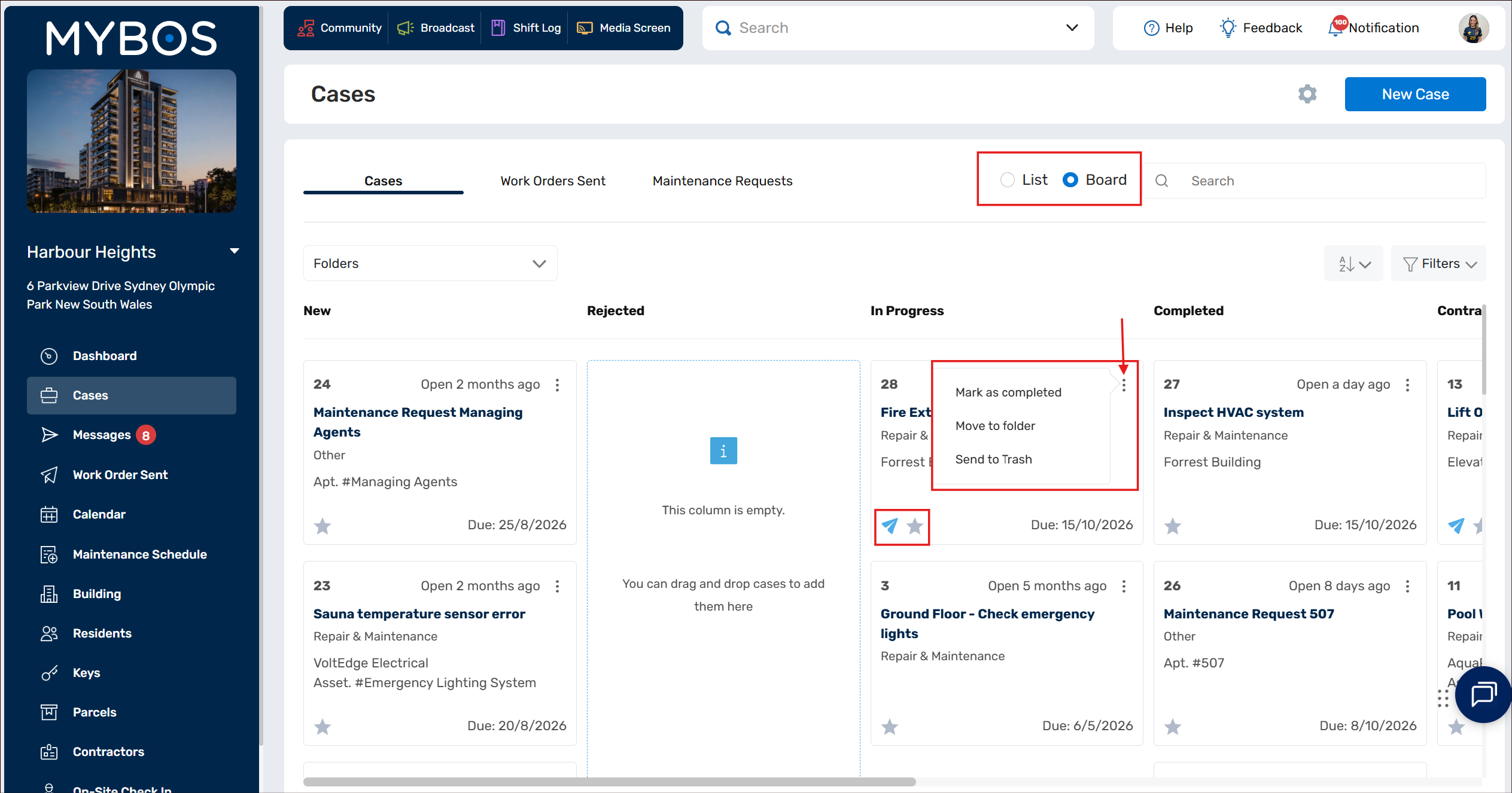
The default view for cases is in List mode (recommended if you have a lot of open cases), but you can also use the toggle in the top right corner to view an interactive Board version of your Cases. From this view, you can drag & drop to move Cases between Statuses, or click on the three dot menu in the top right of each Case card to follow an action.
- Mark as Completed
- Move to Folder
- Send to Trash
❗Send to Trash is a permanent action and cannot be undone.
You can use the Star icon to mark the case as a favourite, which moves it to the "Starred" folder for easy access.
The blue envelope icon indicates that an Email has been sent from the Case.
Ability to Save a Draft Case
When you are creating a new case in MYBOS, the system will automatically save a draft copy. This means if you urgently have to step away from your desk you will not have to enter all mandatory fields to save.
Under Cases ➔ Select New Case. As soon as you have made a change to any of the fields in the case such as updating a case type or entering any asset information, etc - the system is going to save this as a draft.
To open up a Draft Case, select the Folders dropdown and select Draft.
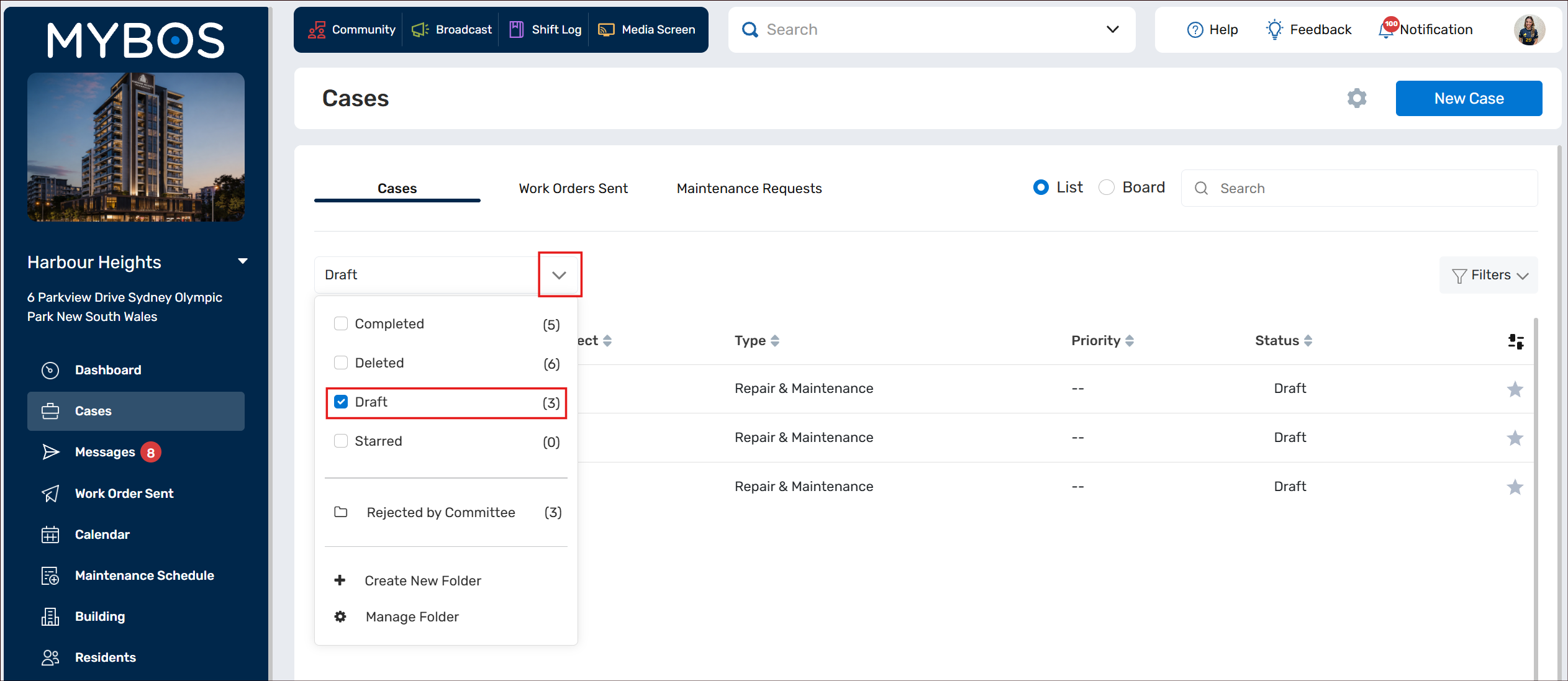
This will filter to just show any Draft cases and you can select to open and continue working on the case from where you left off.