
Short answer: Yes! All you need is the Key ID you have put into MYBOS and a barcode scanner. You can generate a barcode of the Key ID by using an online barcode generator.
If you manage a large number of keys, adding barcodes can make day-to-day key handling much faster. Instead of scrolling through long key lists, your team can scan a barcode to quickly find the right key in MYBOS when keys are being signed in or out. It is a simple way to improve accuracy, speed up handovers, and keep key movements easier to track.
How to Generate a Barcode for a Key
Step 1: Go to Keys in the MYBOS Web Portal.
Step 2: From here, select any one of the keys you wish to create a barcode for.
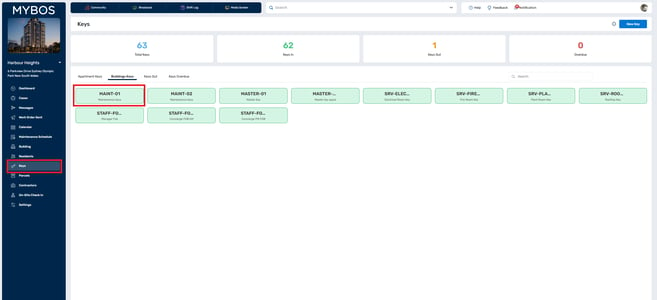
Step 3: For Building Keys, the Key ID is the bolded title that appears for each key. If you can't see the entire Key ID, simply click the key and an information modal will appear.
For Apartment Keys, you will need to click into each apartment to see each key and their respective ID.
Step 4: For the key you would like to generate a barcode for, note down the Key ID. For example, MAINT-01
Step 5: Go to an online barcode generator. Type in your Key ID and download the barcode. Some platforms will let you generator multiple barcodes at once.
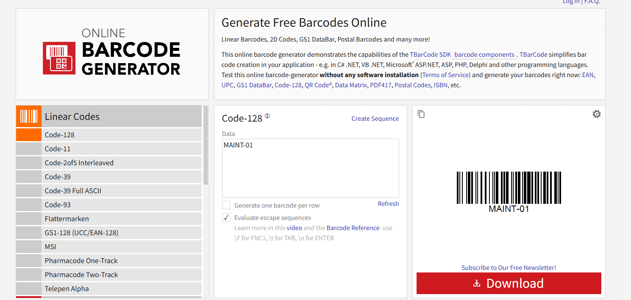
Step 6: Print the barcode and attach it to your key.
Once the barcode is attached and you have a scanner, you can search for the key by clicking on the search bar and scanning the barcode.