The Broadcast feature is an excellent tool that simplifies communication via email, SMS or push notifications, within your building community. This allows you to quickly and effectively relay important messages in the event of emergencies or for general announcements.
Quicklinks
How to Setup a Broadcast
-
Log into the Building Portal -> click on the Broadcast button located on the top menu bar

-
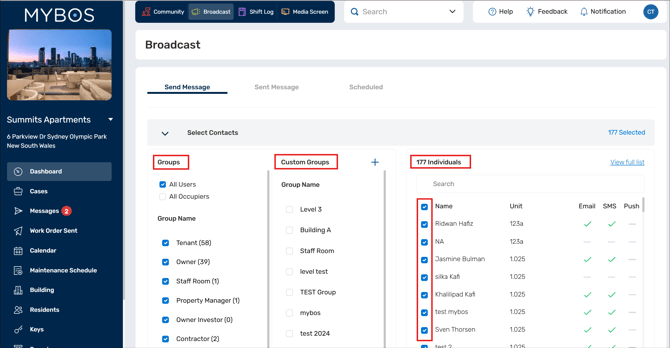
Under Send Message, a list of Contacts will appear. You can either select from the default list Groups, which is populated and created from your building resident database. Or you can select from your Custom Groups and Individuals. Please use the checkboxes to determine the end recipients.
-
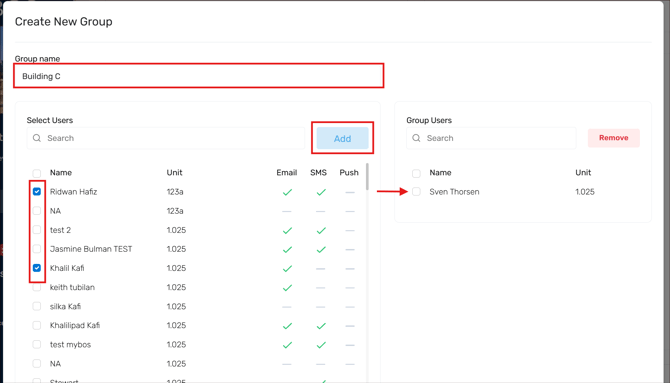
Custom Groups are useful when sending a Broadcast to a specific set of people; e.g. Residents in a specific Building or apartment level, or your Strata Committee members. Click + next to Custom Groups which will open a pop up screen. Give you group a Name, and then either use the Checkboxes or Search bar to find your Residents/Tenants. Select Add, which will put them in the Custom Group list on the right column. Select Save when done.
-
- The three columns listed next to the Individuals list show what type of notification can be sent to your Resident/Tenants.
Note: If any details are missing, these can be adjusted within the Residents area.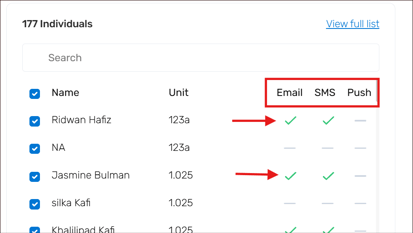
-
Email: A checkmark will be visible in the Email column if the recipient has provided an email address in their profile. This indicates that they can receive your broadcast through email.
-
SMS: A checkmark will be present in the SMS column if the recipient has provided a mobile number in their profile. This signifies that they can receive your broadcast through SMS messages.
-
Push: If the recipient has installed the Resident App on their mobile device, a checkmark will be visible in the Push column. This indicates that they can receive your broadcast through push notifications on the resident app.
-
- After determining your recipients, you'll need to select how you would like to send your Broadcast under Message.
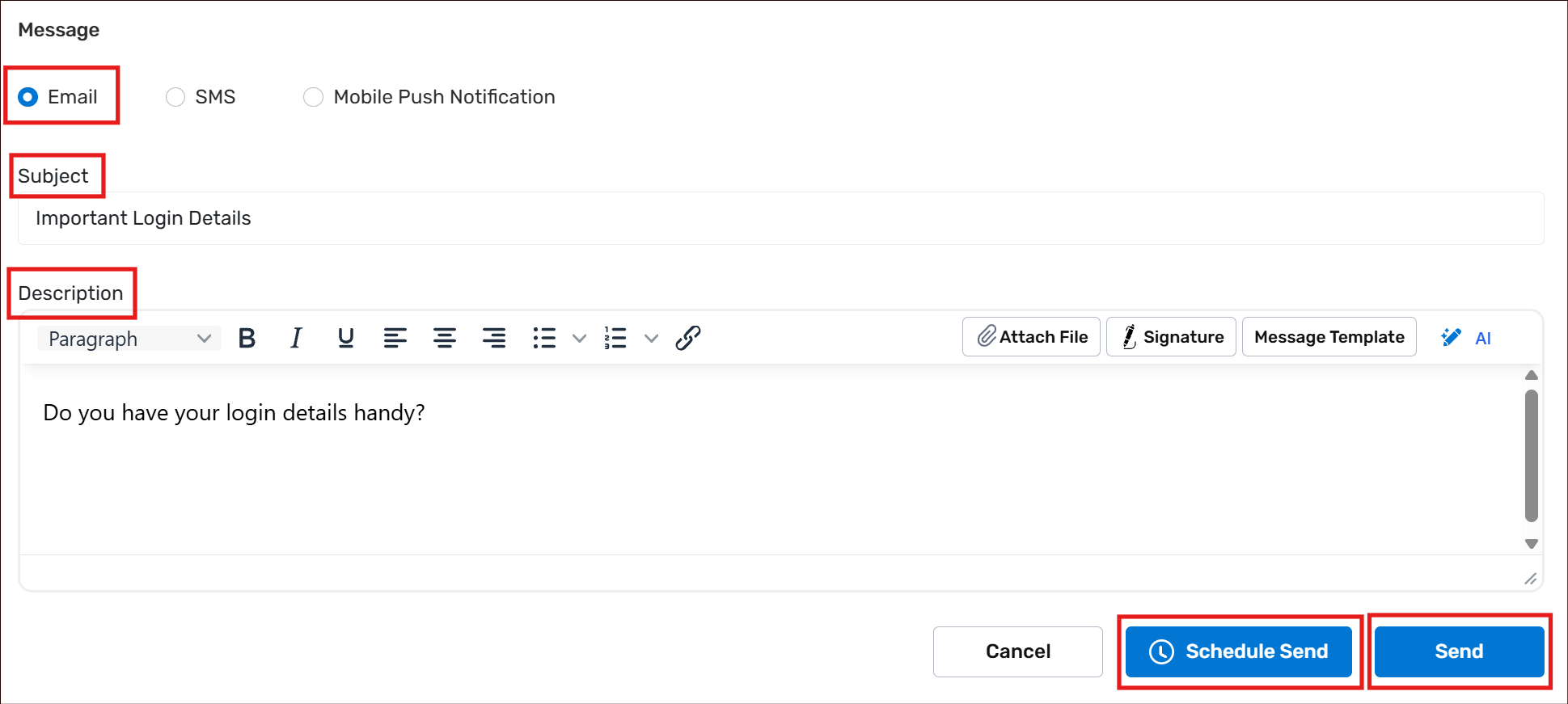
- Email: Type in a Subject Line and Description, as you would normally do for an email. You can also use a Message Template or Signature. Once your email is ready, you can either hit Send to immediately reach your Resident/Tenants or Schedule Send.
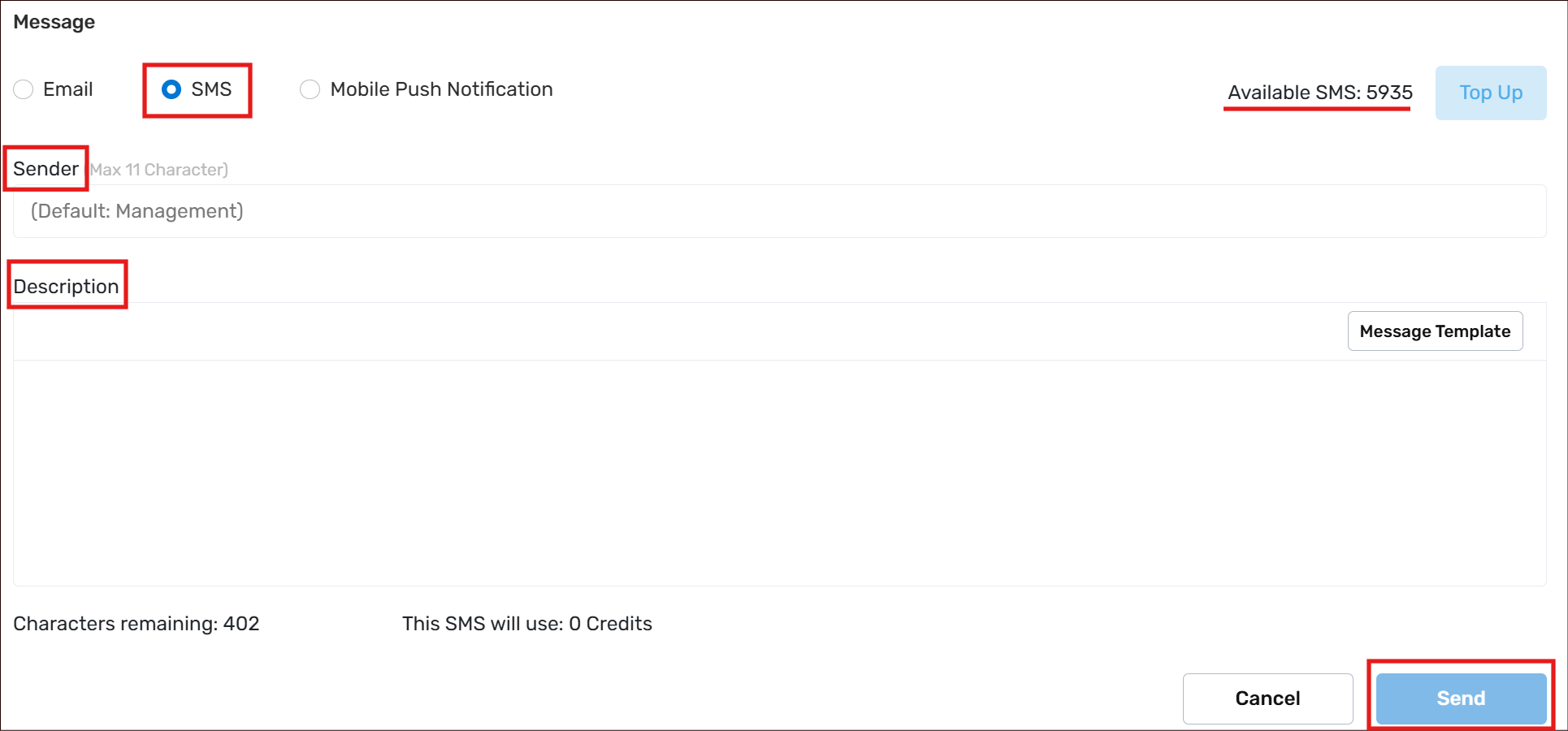
- SMS: Only available if you have SMS credits for your Building, which is listed in the top right corner. As soon as you start typing your SMS, the Character limit (402) will decrease, and the Credits usage will display based on the length of your message and how many recipients are selected. You can utilise the Message Template if needed, and hit Send when ready.
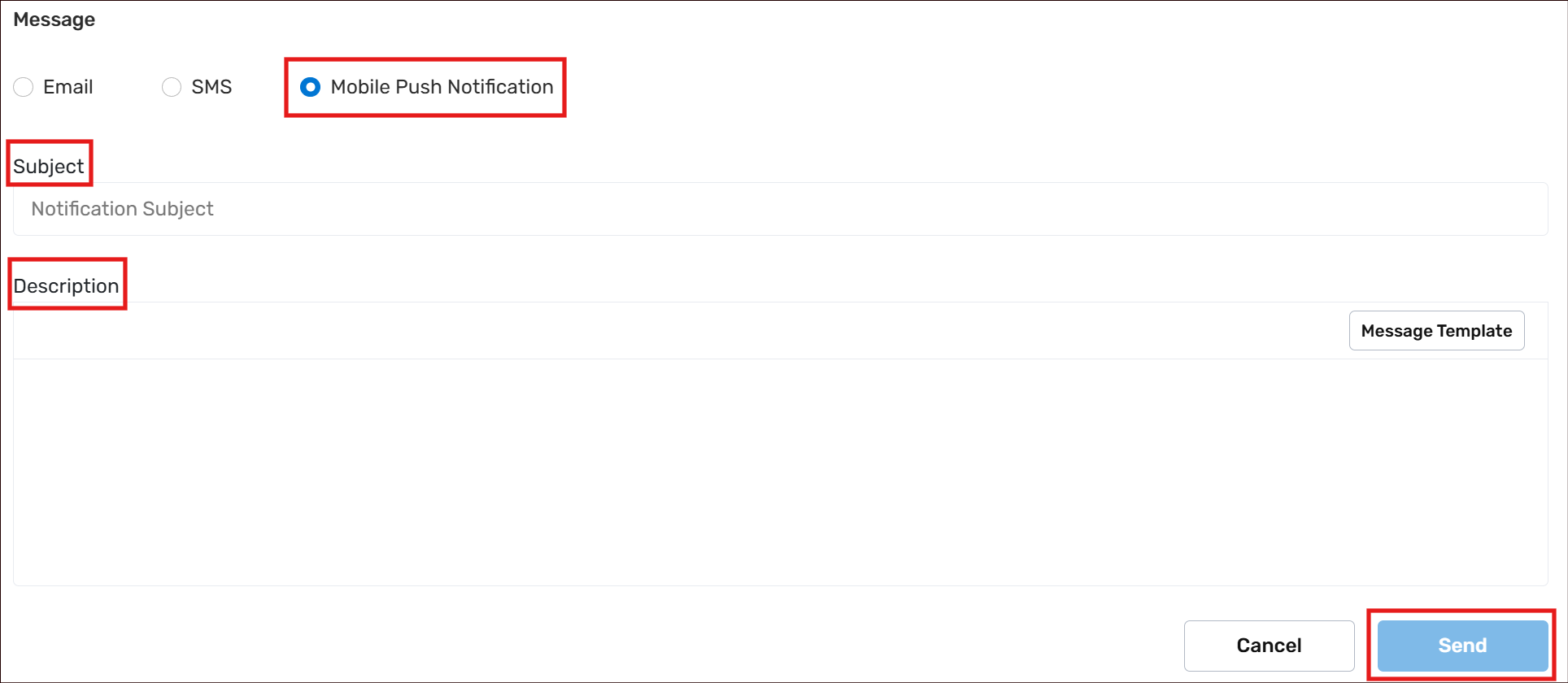
- Mobile Push: This will only work if your Residents/Tenants are using the MYBOS Resident App (iOS or Android), and they have actively logged into the app. The Message Template can also be utilised, and select Send when ready.
- Email: Type in a Subject Line and Description, as you would normally do for an email. You can also use a Message Template or Signature. Once your email is ready, you can either hit Send to immediately reach your Resident/Tenants or Schedule Send.
View Broadcast History
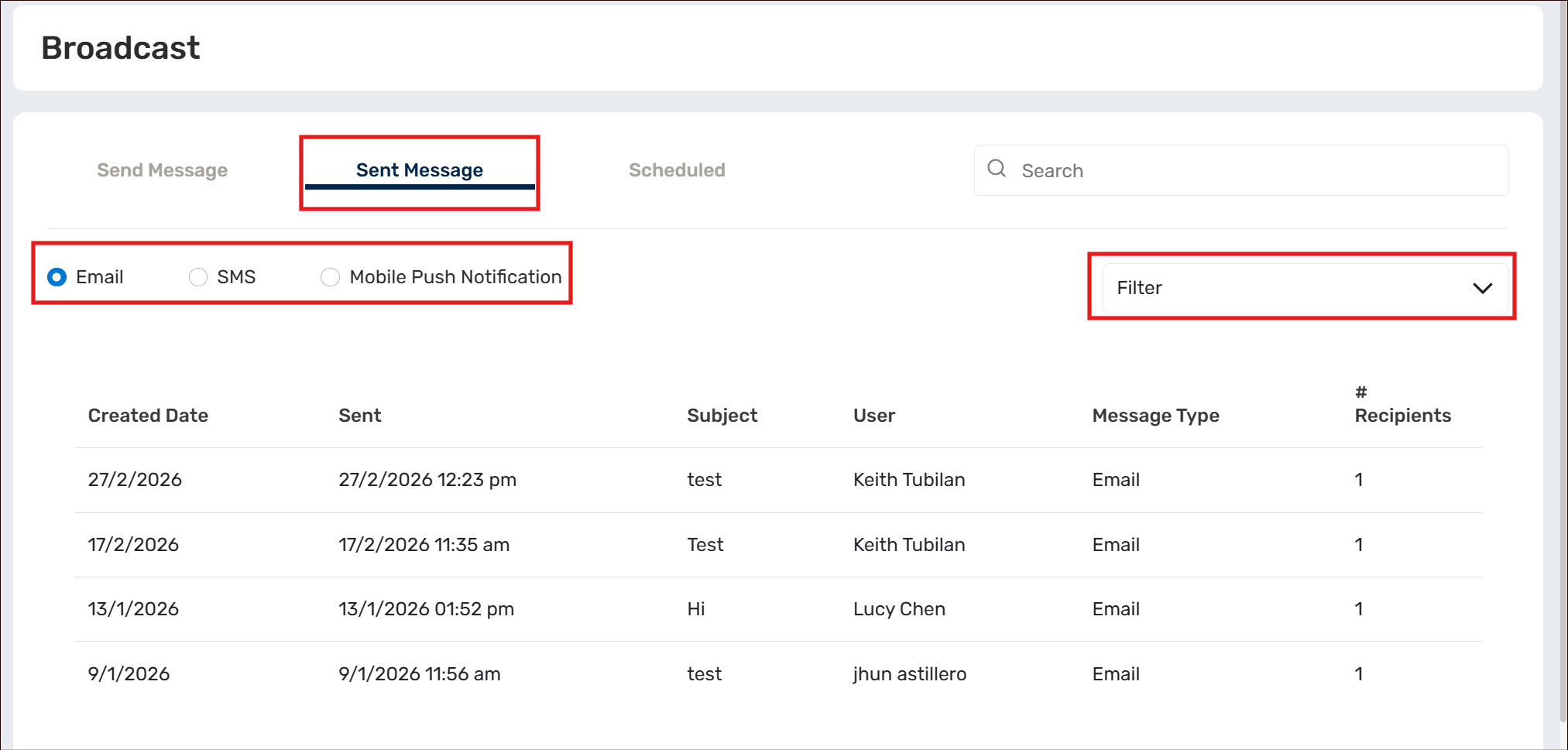
You can view all your previous Broadcasts through the Sent Message tab. Toggle between the Email, SMS and Mobile Push Notification radio buttons to see the individual history. You can also play with the dates under the Filter option.
Scheduled Broadcast
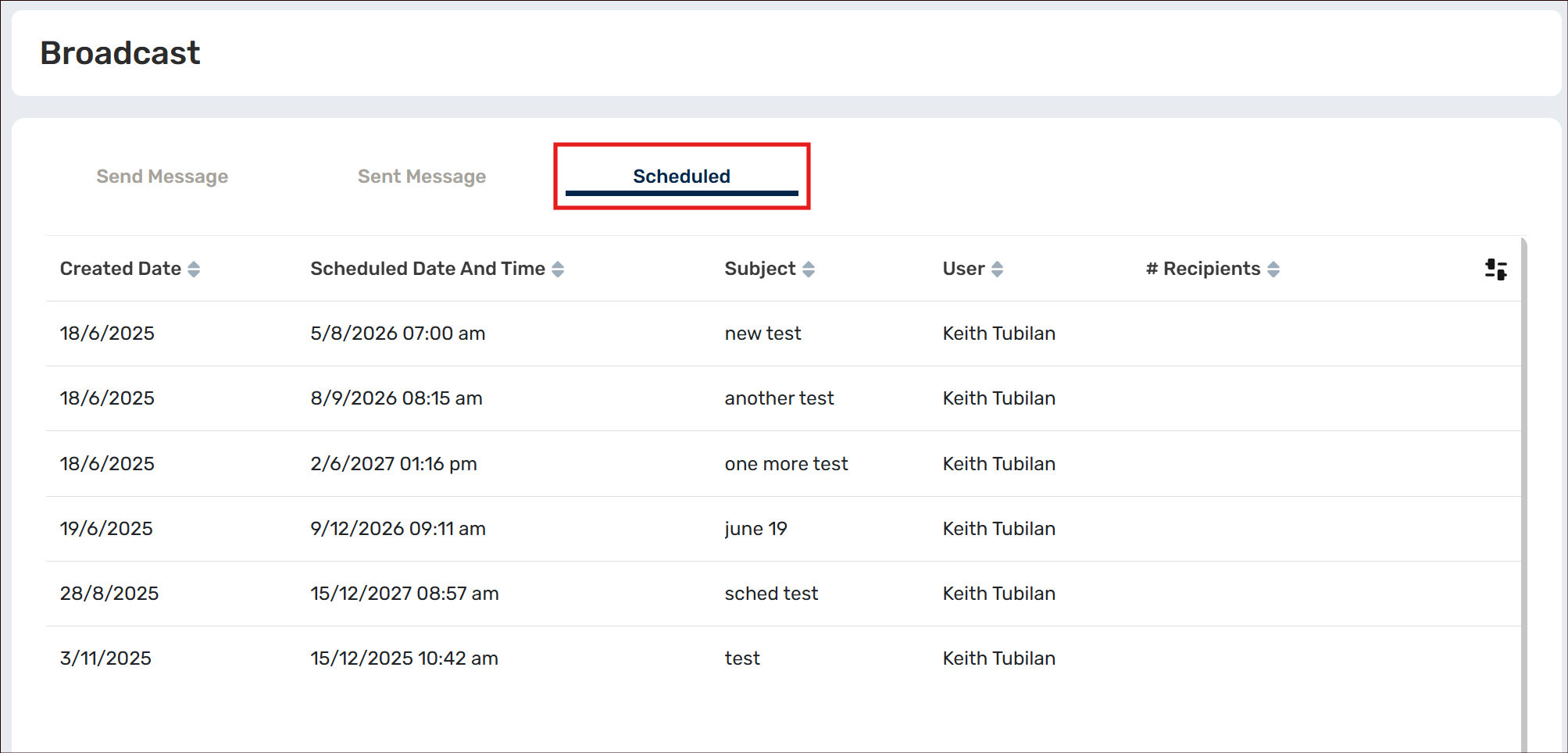
You can view all your Scheduled Emails underneath the Scheduled tab.